 For Everyone
Add to Home Screen iOS Guide for Progressive Web Apps
by AIR.POG Team
You're walking to the station, trying to find a nearby deal before the train arrives. Opening Safari, searching for the right site, waiting for the page, and navigating browser controls can turn a quick decision into a frustrating detour. On an iPhone, Add to Home Screen can turn a useful website into a faster, more focused entry point, but only when you understand the difference between a saved shortcut and a properly installed progressive web app.
For daily commuters, drivers, travelers, and bargain hunters, that distinction matters. A bookmark opens a page in the browser. A correctly configured PWA can launch from the Home Screen in a standalone or fullscreen display mode, with the interface behaving more like an app. The installation is still manual on iOS, but the result can be a lightweight, location-aware utility that doesn't require a traditional App Store download.
Table of Contents
- Why Modern Web Apps Belong on Your iPhone
- Executing the Safari Installation Flow
- Comparing iOS and Android Installation Behaviors
- Unlocking the Full Screen Experience with AIR.POG
- Troubleshooting Manifest and Launch Pitfalls
- Managing and Optimizing Your Web App Library
<a id="why-modern-web-apps-belong-on-your-iphone"></a>
Why Modern Web Apps Belong on Your iPhone
A browser bookmark is useful, but it leaves you inside the browser. You still see Safari's address and navigation controls, and the site behaves like another open page among your tabs. A progressive web app, by contrast, can use a web app manifest to define its identity and display behavior. When the manifest specifies standalone or fullscreen, Apple says that tapping the Home Screen icon opens the site like an app instead of in the browser, as documented in Apple's WWDC23 explanation of Home Screen web apps.
That difference becomes practical when the task is time-sensitive. A commuter checking nearby promotions wants the map immediately, not a sequence of browser decisions. A traveler exploring an unfamiliar city needs location-aware discovery and routing without carrying a separate app for every destination. A student looking for a quick purchase can benefit from a direct launch path that keeps the phone focused on the task.
Learn how progressive web apps work before treating every Home Screen icon as an installed app. The icon alone doesn't tell you whether the page will open in standalone mode. The site must support the required PWA behavior, and iOS must be able to recognize the relevant metadata during installation.
Apple has steadily expanded this model. Its support documentation describes the built-in Safari flow for adding a website to the Home Screen, while Apple also notes that users can choose Open as Web App. At WWDC23, Apple explained that iOS and iPadOS 16.4 added notifications to Home Screen web apps through the Web Push standard, including badging, and that iOS and iPadOS 17 extended Add to Home Screen to Safari View Controller. The Home Screen shortcut has therefore evolved into a more complete web-app path, particularly for sites designed for frequent use.
Practical rule: If you return to a site repeatedly during a commute or errand, launching it from the Home Screen is worth evaluating. The useful question isn't whether the icon exists, but whether the site opens with the focused interface you need.
<a id="executing-the-safari-installation-flow"></a>
Executing the Safari Installation Flow
On iPhone or iPad, the installation starts in Safari. Open the target website there, not in an in-app browser such as the one embedded in a social network or email client. Once the page has loaded, use Safari's Share button to open the system share sheet.
The option you need is Add to Home Screen. It may not be visible immediately, so scroll through the share sheet until you find it. Tap it, review the name and icon presented by iOS, and then tap Add to confirm. Apple documents this sequence as opening the page, tapping Share, choosing Add to Home Screen, and tapping Add. The new icon should then appear on the Home Screen.
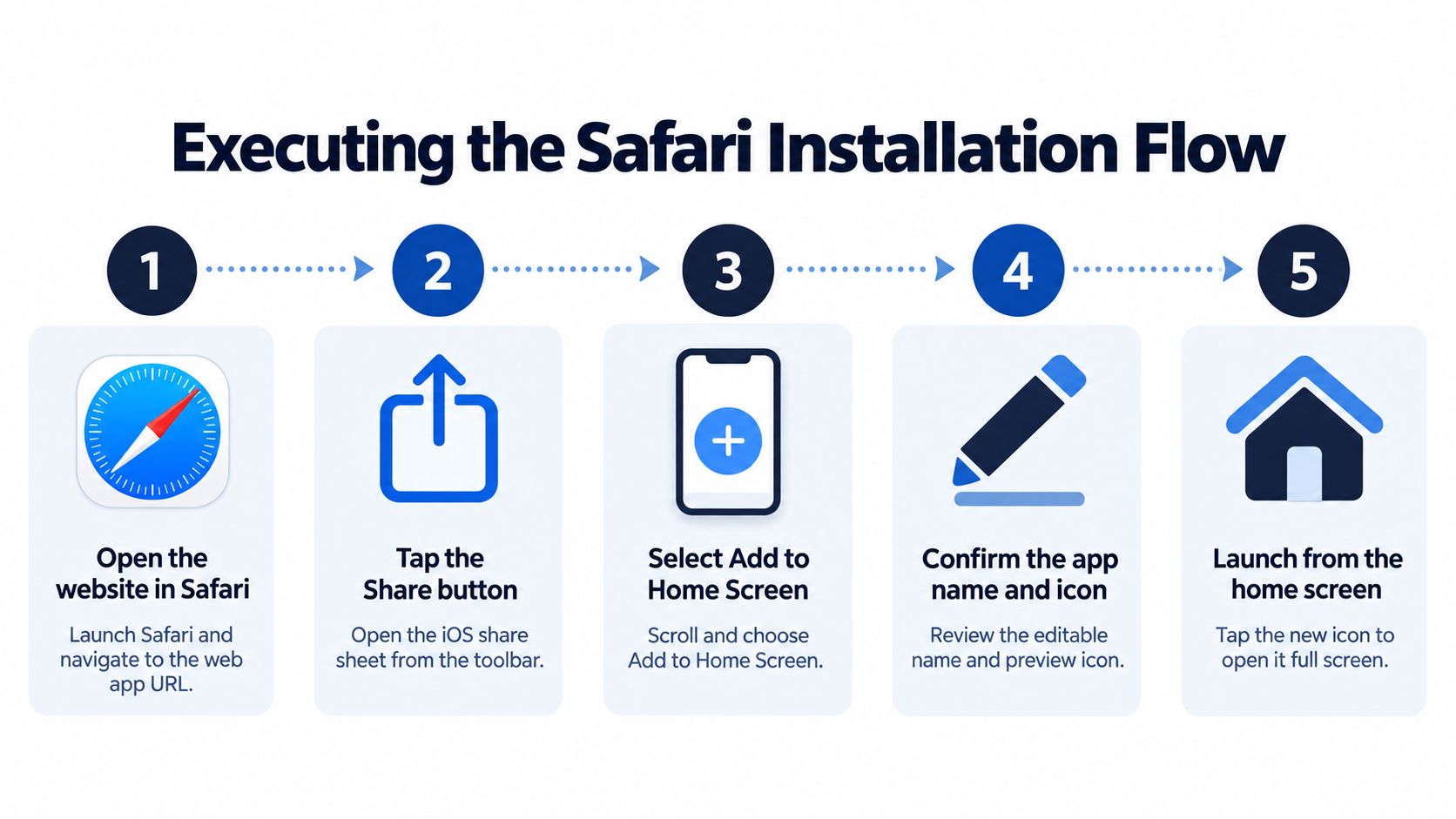
The flow is deliberately initiated by you. iOS doesn't provide the same automatic install prompt that some Android browsers can show, so a website may explain the taps but can't complete them on your behalf. That extra gesture is a usability cost, especially for someone trying to install a site quickly, but it also keeps the Home Screen under the user's control.
Before confirming, check the displayed app name. A concise label is easier to identify beside native apps, especially if you install several location-based tools. Then tap the icon from the Home Screen rather than reopening the original Safari tab. The launch path matters because it lets you test whether iOS is treating the site as a Home Screen web app.
The installation can also be useful without a full-screen result. A non-PWA page may still receive a Home Screen shortcut, but it will open in the default browser. A properly configured PWA aims to provide the more dedicated experience, provided its manifest and display settings are available when iOS evaluates the page.
<iframe width="100%" style="aspect-ratio: 16 / 9;" src="https://www.youtube.com/embed/I4e1aoi0P-o" frameborder="0" allow="autoplay; encrypted-media" allowfullscreen></iframe><a id="comparing-ios-and-android-installation-behaviors"></a>
Comparing iOS and Android Installation Behaviors
Android and iOS make the installation decision feel different because their browser flows expose different signals. On Android, a compatible browser can show an install banner when the site meets relevant conditions. On iOS, Safari keeps the process in the Share sheet, and the user must select Add to Home Screen manually.
That means an iPhone user shouldn't wait for a pop-up that may never appear. The absence of an automatic prompt isn't necessarily a broken website. It reflects the platform's user-gesture model, where the person chooses when the website becomes part of the Home Screen.
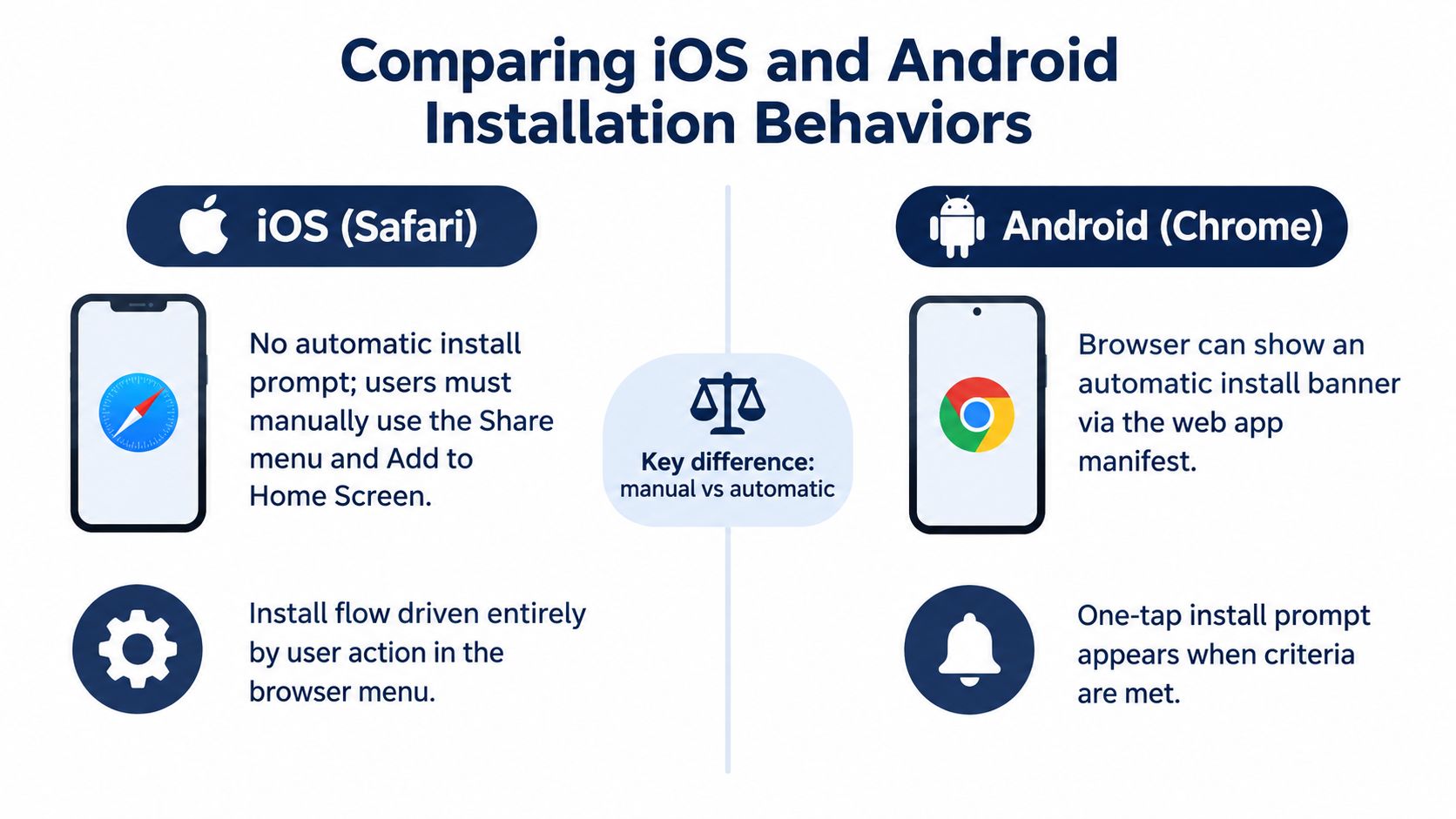
The practical contrast looks like this:
| iOS Safari | Android Chrome | |---|---| | The user opens Share and selects Add to Home Screen. | The browser can present an install option when the site qualifies. | | Installation depends on a deliberate browser gesture. | Installation can feel closer to a browser-suggested action. | | The meaningful success signal is launching from the Home Screen in standalone mode. | The browser may provide a more explicit installation confirmation. |
For teams measuring installation, a Share button tap isn't enough. On iOS, the user can open the share sheet and abandon the process. A better product signal is whether the site later opens without browser UI, as explained in web.dev's PWA installation guidance. That distinction also helps users diagnose their own experience. If the icon launches a normal Safari tab, the Home Screen action created a shortcut, but the standalone app path may not have been established.
The AIR.POG guide to adding a website to the Home Screen follows the same principle: use Safari, open Share, choose Add to Home Screen, and launch from the resulting icon. The steps are simple, but the platform-specific behavior is important enough to explain clearly.
<a id="unlocking-the-full-screen-experience-with-airpog"></a>
Unlocking the Full Screen Experience with AIR.POG
A standalone launch changes the physical layout of the task. Safari's address bar, navigation buttons, and other browser controls no longer compete with the map or primary actions. For a map-first service such as AIR.POG, that reclaimed space supports quicker scanning when the user is walking, traveling, or preparing a stop.
The benefit isn't just visual polish. A location-aware deals interface has to answer practical questions quickly: What is nearby? Which offer is relevant to the current route? How far should the search extend? A focused Home Screen launch makes those decisions feel like one continuous utility rather than a website visit interrupted by browser chrome.
AIR.POG presents nearby promotions on an interactive map, supports adjustable scanning areas, and connects a selected venue to routing. Its POG REELS feed offers another way to review live local offers, while the map-first layout keeps proximity at the center of the experience. Those tools are more usable when the screen is dedicated to the task instead of sharing space with Safari controls.
A driver might open the Home Screen icon before leaving, scan the selected area, and tap through to directions. A traveler can change the current city, inspect nearby entries, and use the map without installing a separate native application for each place. The experience works best when the user completes the interaction before driving and uses the interface as a quick discovery and routing aid rather than handling the phone in motion.
The distinction between a shortcut and a standalone PWA is especially visible here. A shortcut still has value because it reduces the effort of finding the site. A standalone installation goes further by presenting the service as a dedicated surface. Apple's older Safari web-application model also documents standalone mode through the apple-mobile-web-app-capable meta tag, set to yes, as described in Apple's archived web application configuration documentation.
The strongest installation test is simple. Close the browser context, tap the Home Screen icon, and check whether the service opens as the focused tool you intended to install.
<a id="troubleshooting-manifest-and-launch-pitfalls"></a>
Troubleshooting Manifest and Launch Pitfalls
An icon on the Home Screen does not confirm a true standalone installation. If tapping it opens a normal Safari tab with browser controls, the page was saved as a shortcut or the launch configuration was not available when iOS created the icon.
The web app manifest controls identity, icons, and display settings, but iOS has handled it differently across system versions. According to web.dev's PWA enhancement guidance, before iOS and iPadOS 15.4, Safari could fetch the manifest from the network when the Share sheet opened instead of during the initial page load. If that request failed or arrived too late, Add to Home Screen could produce an icon that launched a browser tab. For a deeper walkthrough of manifest requirements, see the installable web app guide.
Use these checks to isolate the failure:
- Confirm the source browser: Open AIR.POG directly in Safari, not inside an in-app browser, so Safari can access the expected installation controls.
- Stabilize the connection: Complete the page load on a reliable network before opening the Share sheet. A delayed manifest request can change the result.
- Inspect the page configuration: If you control the site, verify that the manifest is reachable and that its icon and display settings are valid. A missing or inaccessible manifest gives iOS less information to use.
- Reset a failed attempt: If the icon opens a Safari tab, delete it, reload the page on a stable connection, and repeat the Share flow before assuming the manifest is broken.
AIR.POG can expose this timing issue because maps, location permissions, and interface assets may load at different speeds. A page that looks ready can still have installation-related resources waiting in the background. After reinstalling, launch the icon from the Home Screen and confirm the interface opens without Safari controls. That result is more reliable evidence of standalone behavior than the icon's presence alone.
<a id="managing-and-optimizing-your-web-app-library"></a>
Managing and Optimizing Your Web App Library
A Home Screen works better as a curated dashboard than as a storage area for every site you visit. Keep high-frequency tools near the first page, group occasional services into a folder, and remove icons that no longer support a real routine. A location-aware PWA earns its place when it shortens a recurring workflow, such as checking nearby offers before a stop or orienting yourself in a new city.
iOS also lets you arrange Home Screen pages around contexts. A travel page can contain maps, translation tools, and local discovery services. A commuting page can prioritize transport, navigation, and nearby purchase decisions. Focus modes can help surface a relevant page for a time or situation, although the value comes from matching the layout to an actual habit rather than collecting icons for its own sake.
Removal is just as straightforward as adding. Press and hold the icon, use the available removal option, and choose whether to remove it from the Home Screen or delete the installed web app where iOS presents that choice. If the page was only a regular shortcut, removal affects the icon rather than a native application package.
The technical distinction remains important over time. MDN's installation guidance notes that on iOS, adding a PWA through the Home Screen interface installs the PWA, while adding a non-PWA page saves a shortcut that opens in the default browser. That makes the Home Screen a useful way to separate services you use as dedicated tools from pages you only want to revisit occasionally.
For drivers and travelers, a small library of well-chosen PWAs can reduce app clutter while keeping live, location-aware services close at hand. The model works when each icon has a clear job and launches into an interface suited to that job.
AIR.POG surfaces live nearby promotions on an interactive map, with routing, adjustable scanning areas, POG REELS, and other discovery tools designed for quick local decisions. Add it to your iPhone Home Screen through Safari, test the standalone launch, and visit AIR.POG to start exploring nearby deals.
Spread the word — every share brings more POG'rs to the map. 🎯
Got a story or tip?