 For Everyone
What Is an Installable Web App and How Does It Work
by AIR.POG Team
You're in the car, the phone's in a mount, and a coffee shop you like is coming up in the next two blocks. You tap an icon on the home screen, and instead of opening a browser tab or a slow store listing, a full-screen map appears with nearby offers already loaded. That's the promise of an installable web app, a website that earns a place on the home screen and behaves more like an app without giving up the speed and reach of the web.
Table of Contents
- Opening the Deals Map Without Downloading Anything
- The Web App Manifest and What the Home Screen Reads
- The Service Worker and Why Offline Behavior Matters
- How Installable Web Apps Became Mainstream
- Installable Web Apps Versus Native Apps in Practice
- Map-First Apps in Motion
- Implementation Checklist and Common Mistakes
- Choosing an Installable Web App for Your Product
<a id="opening-the-deals-map-without-downloading-anything"></a>
Opening the Deals Map Without Downloading Anything
An installable web app is still a website. It keeps its URL, ships over the web, and updates like any other site, but the browser is allowed to present it as something you can launch like an app. The practical difference is simple, the site gets a home-screen icon, a standalone window, and a chance to keep working when the connection is shaky.
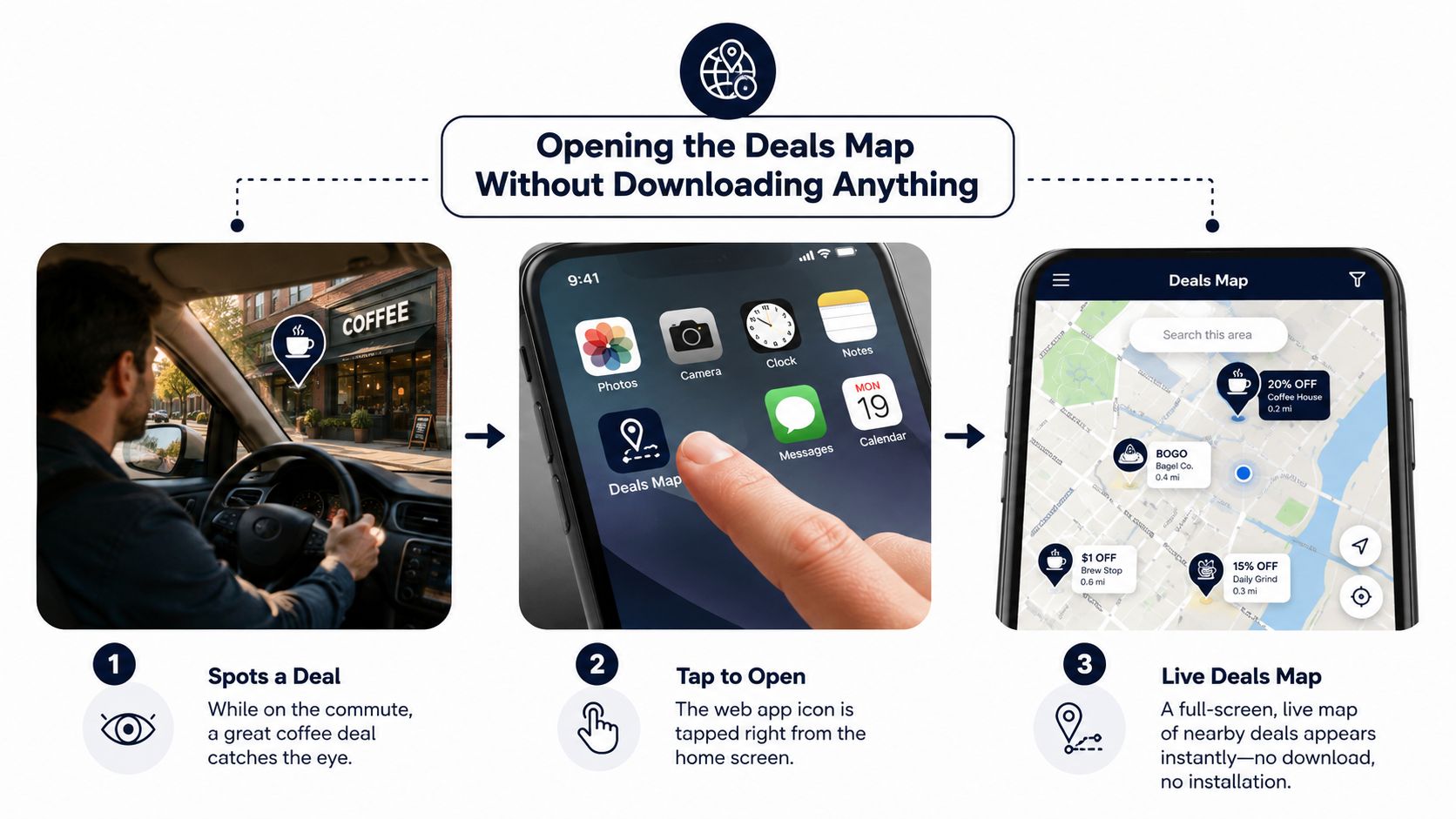
That matters most for products people open in short bursts. A map of nearby deals, a route to the next stop, a quick check before pulling into a parking lot, these are moments where users don't want a store install, a sign-up wall, or a bulky native download. They want the thing to open fast and get out of the way.
<a id="progressive-enhancement-and-installability-are-not-the-same-thing"></a>
Progressive enhancement and installability are not the same thing
A site can be responsive, fast, and friendly on mobile without being installable. That's progressive enhancement, good web craft that makes the experience better across devices. Installability is a stricter platform state, where the browser recognizes that the site meets its requirements and can offer it as a home-screen app.
Practical rule: if a product needs to feel like a tool the user can reach in one tap, installability is the difference between “usable in mobile browser” and “ready to live on the home screen.”
The browser doesn't promote a site just because it looks polished. It looks for a secure origin, a valid manifest, and a service worker, then decides whether the app-like launch makes sense. That's why this topic is useful for product teams, not just engineers.
The question isn't whether the web can look native. It can. The question is whether the web can behave like an app at the exact moment the user needs it, especially when they're moving, distracted, or only have a few seconds.
<a id="the-web-app-manifest-and-what-the-home-screen-reads"></a>
The Web App Manifest and What the Home Screen Reads
A web app manifest is the file the browser consults when it decides how your site should appear after installation. It is not decorative metadata. It is the browser's instruction sheet for the app's name, icon, launch behavior, and presentation. The manifest also feeds the installability signal, so a missing or malformed file can make the install flow disappear.
<a id="the-required-fields-do-specific-jobs"></a>
The required fields do specific jobs
An installable PWA must be served over HTTPS and include a valid manifest with at least a name or short_name, a start_url, a display mode such as fullscreen or standalone, and 192px and 512px icons. It also needs prefer_related_applications to be absent or false. MDN lays out those requirements clearly in its guide to making PWAs installable, and it gives a solid baseline for checking your own file against platform expectations. MDN's installability checklist is worth keeping open while you work.
For more details on how that home-screen handoff works in practice, see our guide to adding an app to the home screen: https://airpog.com/blog/add-to-home-screen-app
Here is how the browser uses the main pieces:
nameandshort_name: these control the label under the icon and the title users see after launch.icons: these provide the artwork for the launcher and the app shell.start_url: this decides the first page that opens after install.display: this tells the browser whether to show app chrome or launch in a more native-like shell.theme_colorandbackground_color: these shape the initial visual impression.scope: this limits which URLs belong to the installed app.
The manifest is the contract the platform reads. If you point start_url at the wrong place, the installed app may start on a generic page instead of the map or dashboard you intended. If the icons are wrong, the browser may reject the install signal outright.
That is why people who describe installable web apps as “just a manifest” miss the point. The manifest is the home screen's readout of what your site is, where it begins, and how it should feel when it opens.
A clean manifest does not make a site installable by itself, but a broken one can block installability even when everything else looks fine.
The W3C app manifest model describes this relationship as part of the app-like launch experience, where the browser can open the site from the home screen and apply the manifest's members to the launched window. Product teams notice the effect immediately. The site stops feeling like a tab and starts feeling like an app shell.
<a id="the-service-worker-and-why-offline-behavior-matters"></a>
The Service Worker and Why Offline Behavior Matters
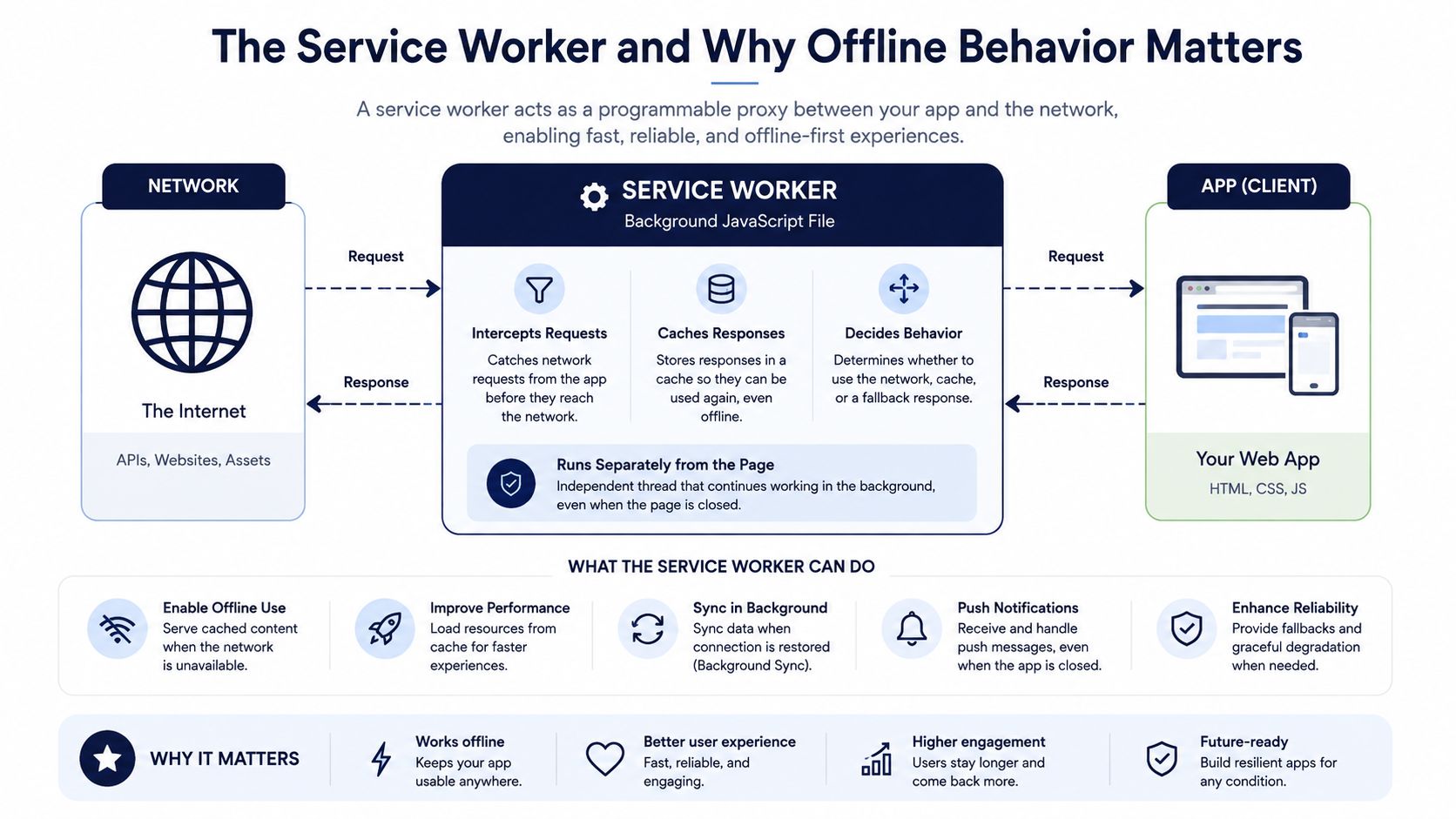
A service worker is a background script the browser runs separately from the page. It sits between the network and the app, intercepts requests, and decides what to do when the network is slow or gone. Normal page scripts can update the DOM and respond to user events, but they can't stand in as a network proxy the way a service worker can.
<a id="think-like-a-barista-not-a-page-script"></a>
Think like a barista, not a page script
A page script is the cashier at the counter. A service worker is the barista who remembers the last order, knows what can be prepared immediately, and keeps serving even when a machine is temporarily down. That's why installable web apps feel dependable in a car, on a train, or anywhere mobile signal wobbles.
Google's PWA guidance says apps should work across devices, support offline states appropriately, and avoid assumptions about screen size. Infrequently.org pushes the same idea harder, arguing that a PWA should load instantly, stay interactive under poor network conditions, and clearly tell users what actions are available offline. That combination matters for real use, not just developer checklists. Infrequently.org's PWA framing is useful because it centers user trust, not just installation.
A service worker usually moves through three broad phases:
- Install, where the browser gets the worker ready.
- Activate, where the worker takes control.
- Fetch, where it intercepts requests and can serve cached responses.
The important part is that it's not the same as a page script running in the foreground. It can keep a shell usable while the page waits for the network, and that's the difference between a bookmark and a tool.
Practical rule: if the app is supposed to help someone while they're moving, your offline story can't be an afterthought. The service worker is the mechanism that makes the promise real.
This is also why service worker presence is a gating requirement for install flows in Chromium-based browsers. The browser isn't just checking for polish, it's checking for a real runtime path when the network isn't reliable.
<a id="how-installable-web-apps-became-mainstream"></a>
How Installable Web Apps Became Mainstream
The technical story used to sound experimental. The numbers now look much less niche. By the end of 2020, about 2.2% of websites had an installable Web App Manifest and about 1% included a Service Worker. The same analysis estimated roughly 1.5 million websites could be installed to mobile home screens and about 600,000 were offline-capable, which shows how far the installable-web-app model had already spread by then. The 2021 installability snapshot makes the scale easy to miss if you only think in terms of one app at a time.
<a id="the-platform-caught-up-with-the-idea"></a>
The platform caught up with the idea
That same source reported that 85.2% of web users could install a PWA from their browser and 95.1% supported Service Workers on the web they used. It also said the number of origins with PWAs grew by 170% in 2020, while Service Worker usage increased 38% in the last year. Those numbers matter because they shift installable delivery from “edge case if the browser cooperates” to “broadly available on the web people use.”
The result is that installability is no longer a compatibility gamble in major markets. Product teams can treat it as a deliberate distribution choice, then decide whether the product's use case fits the model.
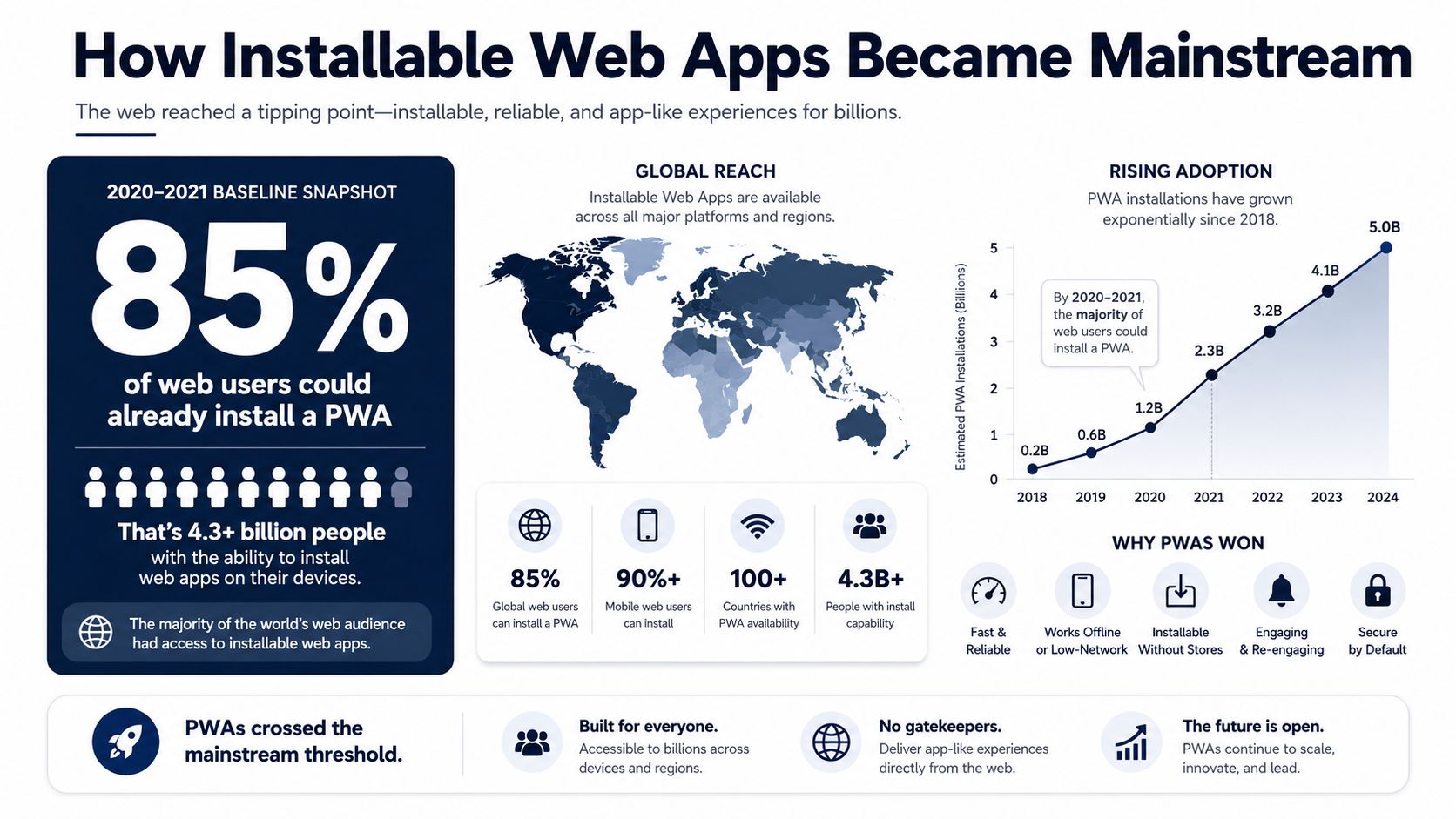
Here's the takeaway. If a product needs to be opened quickly, updated often, and used without a store detour, the web can now carry much of the load. The old objection that installable web apps are technically fragile doesn't hold up the way it used to.
<iframe width="100%" style="aspect-ratio: 16 / 9;" src="https://www.youtube.com/embed/-7r4NX-9gvw" frameborder="0" allow="autoplay; encrypted-media" allowfullscreen></iframe><a id="installable-web-apps-versus-native-apps-in-practice"></a>
Installable Web Apps Versus Native Apps in Practice
The right comparison isn't “web versus app,” it's “which delivery model removes the most friction for this use case.” For quick, repeat, location-aware products, the installable web app often wins because the user can open it from a URL, pin it to the home screen, and avoid the app store entirely. Native apps still have their place, especially when a product needs advanced OS hooks or very deep platform integration.
<a id="a-decision-matrix-that-matches-real-product-trade-offs"></a>
A decision matrix that matches real product trade-offs
| Criterion | Installable Web App | Native App | |---|---|---| | Distribution | Opens from a URL, can be installed from the browser | Usually distributed through an app store | | Updates | Ships as soon as the site changes | Often depends on store review and user update behavior | | Storage footprint | Typically lighter because it's web-delivered | Often larger after installation | | Discoverability | Searchable on the web and linkable anywhere | Depends on store search and app awareness | | Device integration | Covers many common needs like install, share, splash, and browser-supported APIs | Strongest for deep OS features and specialized hardware access | | Best fit | Fast, repeat, on-the-go use, especially map-first or content-driven products | High-end graphics, complex native integrations, or brand-specific apps users seek out by name |
The native model still wins when the product depends on capabilities that are tightly bound to the operating system. But if the user's job is to get in, find something nearby, and act on it quickly, the installable web app reduces the time between intent and interaction.
The internal tension for product teams is simple. Native gives you more platform control, but it also adds distribution friction. Installable web apps keep the web's reach and speed, while giving the user an app-like shell that lives on the home screen.
The PWA versus native comparison is useful if you're weighing launch speed against platform depth, but the core pattern stays the same. For products that are checked in motion, the web often gives you the fastest path to first use.
<a id="map-first-apps-in-motion"></a>
Map-First Apps in Motion
Location-aware products expose the test. A user does not open a map-first app to admire the layout, they open it to solve something while moving, parking, or deciding where to stop next. The app has to make sense with one hand, a weak signal, and a short attention window.
A map-first product also has to fit the setting. In a car, on a sidewalk, or standing outside a venue, every extra tap creates more friction than it would on a desktop screen. The installed shell should behave like a tool that is already ready, not like a site that still needs orientation.
<a id="the-launch-should-go-straight-to-the-map"></a>
The launch should go straight to the map
A browser prompt is only the first step. After installation, the installed shell should open directly into the map, not a marketing page or a login maze. start_url, display, and service worker behavior work together here, because the user expects the app to land where action starts.
The best flow is short and practical:
- Install from the browser prompt.
- Open from the home screen in fullscreen or standalone mode.
- Center on the user's current location or chosen city.
- Let the user tap a venue, then route to it.
- Open the offer details with a second tap.
That sequence keeps the experience low-friction while in motion. Bigger tap targets, clear contrast, and a route-first layout matter more here than flashy transitions.
A common mistake is to treat installation like the goal. For a map-first product, installation only matters if it drops the user into the job they came to do. Nearby deals work best when the app opens in the exact context of the neighborhood, map, or venue the user is already thinking about.
<a id="trust-in-motion-depends-on-fallback-behavior"></a>
Trust in motion depends on fallback behavior
The more the app expects the user to be moving, the more it needs to stay predictable when connectivity blips. Cached map tiles, a sensible offline shell, and obvious feedback about what is available keep the experience from feeling broken mid-trip. Installability becomes part of UX rather than just distribution.
Users forgive missing polish faster than they forgive uncertainty. If a map is on screen, they need to know whether a tap will work before they take their eyes off the road.
A map-first app also has to respect attention. The browser-installed shell helps because it removes a layer of navigation chrome and makes the app feel focused rather than sprawling. That does not make it safer by itself, but it does reduce the number of steps between decision and action.
<a id="implementation-checklist-and-common-mistakes"></a>
Implementation Checklist and Common Mistakes
The fastest way to make a site installable is to treat the platform rules as a sequence, not a mystery. First, serve the app over HTTPS. Then ship a valid manifest with a name or short_name, a start_url, a supported display mode, and the required icon sizes. Finish by registering a service worker with a real fetch handler.
<a id="what-usually-blocks-the-prompt"></a>
What usually blocks the prompt
Chrome's install criteria also include an engagement threshold, the user must have clicked or tapped the page at least once and spent at least 30 seconds on it before beforeinstallprompt fires. That means a technically valid app can still fail to show an install prompt if the user arrives, glances, and leaves too quickly. Chrome's install criteria make that behavior explicit.
Here are the mistakes that break installability:
- Wrong manifest path: the manifest and the live app scope don't line up, so the browser reads the wrong URL set.
- Missing icons: if the 192px and 512px assets aren't there, the install signal can fail.
- Late service worker registration: the browser checks for installability before the worker is ready.
- No fetch handler: a registered worker without request handling doesn't satisfy the practical gating rule in Chromium-based browsers.
- Competing manifests: multiple manifest links can confuse the install path.
prefer_related_applicationsset incorrectly: this can suppress the web install flow.
Independent guidance on Chromium-based browsers also notes that install prompts depend on HTTPS, a manifest, a registered service worker with a fetch handler, and at least the two required icon sizes. The installability checklist used by frontend teams is a good companion because it turns browser behavior into a practical QA list.
<a id="how-to-verify-it-quickly"></a>
How to verify it quickly
Use Chrome DevTools to inspect the Application tab, check the manifest panel, and look at the installability section. Lighthouse PWA audits help catch the missing pieces before you ship. If the app is meant to live on the home screen, test it there, because that's where launch behavior and fullscreen presentation show up.
<a id="choosing-an-installable-web-app-for-your-product"></a>
Choosing an Installable Web App for Your Product
The decision comes down to usage pattern. If people open the product often, expect it to launch fast, and need it to work on weak signal or in motion, an installable web app is usually the better default. If the product is a one-time destination, a deep native tool, or something users consciously seek out in an app store, native still makes sense.
<a id="ask-the-product-questions-that-matter"></a>
Ask the product questions that matter
A useful checklist looks like this:
- How often do users open it? Frequent use favors home-screen access.
- How fast must it launch? Short attention windows reward an app-like shell.
- Does it need to work offline or on flaky data? If yes, the service worker is not optional.
- Will users tolerate a non-store install? Many will, if the web app earns trust quickly.
- Does the app need deep OS integration? If yes, native may still be the stronger fit.
For quick, repeat, location-aware, or content-driven products, the installable web app model is often the right first move. It keeps distribution simple, updates immediate, and the launch path close to the user's intent.
The long-term direction is clear. As browsers keep expanding what they expose to the web, installable delivery will keep getting more capable, not less. For many products, the right question isn't whether the web can be installed. It's whether the product deserves a place on the home screen.
If you're building a map-first experience, AIR.POG shows how an installable web app can keep the user close to the action with live, nearby discovery and a direct path to routing. Visit AIR.POG to see how a home-screen app can support quick decisions, short stops, and on-the-go exploration without forcing an app-store detour.
Spread the word — every share brings more POG'rs to the map. 🎯
Got a story or tip?