 For Everyone
How to Add to Home Screen App on Any Device
by AIR.POG Team
You're standing in a browser tab, the site you use all the time is open, and you want one tap next time, not a fresh search, a fresh login, and a fresh round of scrolling. That's the whole appeal of an add to home screen app, a home screen icon that can feel like a launcher for the web app you use, whether you're checking deals, reading updates, or opening a map in a hurry. The tricky part is that this phrase covers more than one thing, and the result depends on the device, browser, and whether the site is built as a Progressive Web App.
Table of Contents
- Why You Might Want a Home Screen App Instead of a Bookmark
- Adding to Home Screen on iPhone and iPad
- Installing a Web App on Android Phones and Tablets
- Installing PWAs on Windows and macOS
- Manifest, Service Worker, and Icon Checklist
- Making the Installed App Feel Right
- Troubleshooting and Final Checklist
<a id="why-you-might-want-a-home-screen-app-instead-of-a-bookmark"></a>
Why You Might Want a Home Screen App Instead of a Bookmark
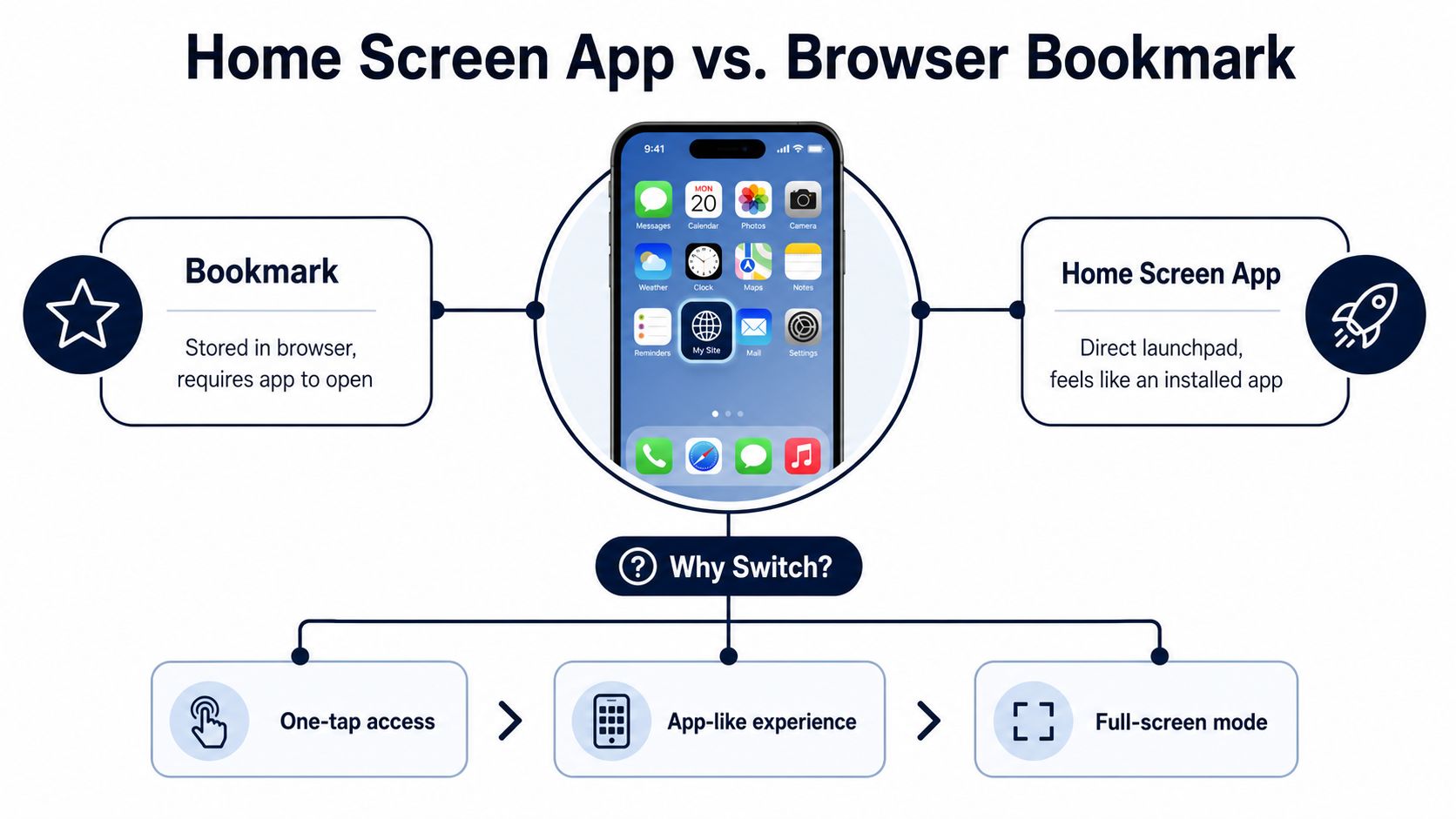
The first point of confusion is simple. A bookmark and an installed home screen app do not always behave the same way. A bookmark stays inside the browser, while an installed web app can open in its own window and feel much closer to a native app. On devices that support true PWA installation, that changes how the site launches, how it looks, and how easy it is to return to it later.
If you are tired of typing the same address or digging through tabs, putting the site on your home screen cuts out a few small steps every time. Once a site is easy to relaunch, people tend to use it more often because the path back is shorter. Chrome's install work around modern PWA features helped make that pattern more visible, but the key point is simple, less friction usually means more repeat use (Chrome PWA install features).
<a id="shortcut-bookmark-or-installed-app"></a>
Shortcut, bookmark, or installed app
A lot of guides flatten everything into one instruction set, and that hides the part that matters. On iPhone, a site saved from Safari usually behaves like a web shortcut that opens back in the browser. On Android and desktop, a properly configured site can install as a standalone PWA with its own app-like window, if it meets the browser's install rules.
Practical rule: if the icon opens a browser tab, you have a shortcut. If it opens a separate app window, you have a real installed web app.
That distinction matters for a tool like AIR.POG's deal finder app, where the goal is quick access to a map-first experience. A shortcut can still help, but it is not the same as a site that launches like a native app.
<a id="what-users-feel-after-installation"></a>
What users feel after installation
The benefit is not just less typing. An installed PWA can keep the browser chrome out of the way, reuse cached assets, and make repeat launches feel immediate. That helps most with mobile tasks, where attention is split and the home screen icon becomes the direct route back to the same place.
The same website can feel different on different devices. That is not a bug, it is the install model doing exactly what each platform allows. If the site is a real PWA, the device treats it more like an app. If it is only a saved page, the browser stays in charge.
For people who use location-heavy tools, that difference can make the interface easier to trust. You tap once, the app opens where you expect, and the map or dashboard is right there instead of buried under browser tabs. A home screen app is less about decoration and more about reducing the distance between intent and action.
<a id="adding-to-home-screen-on-iphone-and-ipad"></a>
Adding to Home Screen on iPhone and iPad
On Apple devices, the main path goes through Safari, not because Safari is the only browser you can install from, but because iOS has long centered the home screen flow there. The usual sequence is straightforward, open the site in Safari, tap the Share icon, then choose Add to Home Screen from the share sheet. If the site has proper icons and metadata, iOS uses them. If it doesn't, you may get a generic-looking tile or a simplified badge.
Here's the part that surprises people. Saving a site to the home screen on iPhone or iPad does not automatically mean you've created a standalone app window. On iOS, the saved icon usually opens back in the browser environment, which is why the experience feels different from a fully installed PWA on platforms that support standalone launch behavior more directly (MDN installing PWAs). The icon is still useful, but the underlying behavior is not identical.
<a id="the-safari-flow"></a>
The Safari flow
- Open the page in Safari.
- Tap the Share button at the bottom of the screen on iPhone, or near the top on iPad.
- Scroll the share sheet until you see Add to Home Screen.
- Tap it, confirm or edit the name, then tap Add.
That name is what will appear under the icon, so keep it short and recognizable. If you're saving a tool you use often, a clean label helps you spot it quickly among your other apps. The device creates the icon right away, and you can move it anywhere you like on the home screen.
For a mobile walkthrough that mirrors this flow with a practical example, see AIR.POG's grocery deals app guide.
If the browser menu doesn't show Add to Home Screen, the page may not be in the right browser, or the site may not be exposed in the way iOS expects.
The key thing to remember is that the iPhone and iPad flow is about convenience, not magic. You still need to know whether the icon is a shortcut into Safari or a fuller PWA-style install on another platform. Once you understand that difference, the menu stops feeling confusing.
<iframe width="100%" style="aspect-ratio: 16 / 9;" src="https://www.youtube.com/embed/B9_XgwSMCA0" frameborder="0" allow="autoplay; encrypted-media" allowfullscreen></iframe><a id="installing-a-web-app-on-android-phones-and-tablets"></a>
Installing a Web App on Android Phones and Tablets
On Android, “add to home screen” can lead to two different results, and the difference matters. One path gives you a real installed web app, the other creates a lighter shortcut that opens the site. Chrome can show an install prompt when a site meets its install rules, and you can also install it from the browser menu if the prompt never appears.
<a id="when-chrome-shows-the-install-prompt"></a>
When Chrome shows the install prompt
Chrome does not show the automatic prompt at random. The site has to meet the installable web app requirements first, including the manifest, service worker, HTTPS, and Chrome's own engagement checks. You do not need to memorize each rule as a user, but knowing they exist helps explain why one site offers install and another stays quiet.
When the prompt appears, accept it and confirm the name. Android then places the icon on the home screen or in the launcher, depending on the browser and device setup. On some phones, the installed app also shows up in the app drawer alongside regular apps, which is a good sign that you got more than a bookmark.
<a id="the-manual-chrome-path"></a>
The manual Chrome path
If no prompt appears, open the site in Chrome, tap the three-dot menu, and look for Install app or Add to Home screen. The wording changes by browser and version, which is why users often assume the steps are broken. The goal is the same, but the label gives you a clue about what Chrome thinks it is doing.
Practical rule: if Chrome says Install app, that is the stronger signal. If it says Add to Home screen, you may be getting a shortcut-style entry instead.
That difference helps because Android browsers do not all behave the same way. Chrome, Samsung Internet, and other browsers can show different labels or fallback behavior, even when they point to the same site. After installation, open the launcher or app drawer and tap the icon there, not just the browser tab, so you can see how it launches.
If it opens in its own window, the site is acting like a real installed web app. If it jumps back into the browser, you are looking at shortcut-like behavior instead. That quick test removes a lot of guesswork later.
<a id="installing-pwas-on-windows-and-macos"></a>
Installing PWAs on Windows and macOS
Desktop installs are easy to miss because people assume home screen behavior is a phone-only feature. It isn't. Chrome and Edge both expose install actions on Windows and macOS, and the result is a cleaner window that behaves more like an app than a tab.
<a id="chrome-and-edge-on-desktop"></a>
Chrome and Edge on desktop
In Chrome, look for the install icon in the address bar when a site is installable. If it's there, click it and confirm the install. If you don't see it, open the browser menu and look for the app install option there. On Edge, the path usually lives under the browser's apps or install menu.
After install, the app lands where the operating system expects it. On Windows, that usually means the Start Menu. On Mac, it appears in Applications or in the browser's own apps listing, depending on how the install is handled.
A desktop PWA window is useful because it trims away browser clutter. You get the app window, not the full browser frame, which makes the site easier to treat like a dedicated tool. That's helpful for work apps, dashboards, and web products that people open repeatedly during the day.
<a id="finding-it-after-installation"></a>
Finding it after installation
If the icon seems to disappear, don't assume the install failed. Check the browser's apps page, the Start Menu, or Applications on Mac. Some users only look at the dock or taskbar and miss the actual install location. Once found, you can pin it where you want for faster access.
Installed desktop PWAs are easiest to trust when they launch from the OS menu, not only from the browser history.
That's the quick way to tell you've moved beyond a saved tab. The app becomes part of your desktop workflow, and the browser stops being the only doorway back in.
<a id="manifest-service-worker-and-icon-checklist"></a>
Manifest, Service Worker, and Icon Checklist
When a site refuses to install, the missing piece is usually one of the basics. A proper PWA needs HTTPS, a web app manifest, a service worker, and the right icons. Those pieces tell the browser that the site is ready to behave like an app, not just a page you saved for later, and Chrome's install flow looks for that setup before it offers a home-screen install (LinuxCode add to home screen guide).
<a id="what-each-piece-does"></a>
What each piece does
- HTTPS: keeps the site eligible for service worker registration and secure installation.
- Web app manifest: tells the browser the app's name, icon, and theme details.
- Service worker: enables offline capability and helps the browser treat the site like an app.
- Icons: the browser uses the app's icon assets for the home screen tile, including sizes like 192×192 and 512×512 (TrueTech PWA add to home screen).
A good way to separate a real install from a simple shortcut is to look at what the browser had to work with. A shortcut can point back to a webpage. A PWA install is built from the manifest, the service worker, and the icon set, so the browser has enough information to open it as its own app-style entry.
The browser does not treat every site the same way. It checks those signals, then decides whether the site is ready for installation. That is why one site may show an install prompt right away while another never does, even if both look fine on the surface.
| Requirement | What it does | Where to verify | | --- | --- | --- | | HTTPS | Secures the app and enables PWA features | Browser address bar and site settings | | Web app manifest | Defines name, icon, and theme | Manifest URL or Chrome DevTools | | Service worker | Supports offline behavior and installability | Chrome DevTools, Application panel | | Icons | Provides the home screen icon | Manifest file and asset library |
For people comparing installable web apps to other lightweight discovery tools, products like AIR.POG's local restaurant coupons page follow a similar idea, where the path into the experience matters as much as the content itself.
<a id="how-to-inspect-the-setup"></a>
How to inspect the setup
If you own the site, open Chrome DevTools and check the Application panel. That is where you can confirm the manifest and service worker. If you are just using the site, you usually do not need to inspect anything, but the checklist helps explain why one browser offers install and another does not.
The browser is asking for the pieces it needs before it turns a page into an installable app. Once those pieces are in place, the home screen version becomes much more predictable.
<a id="making-the-installed-app-feel-right"></a>
Making the Installed App Feel Right
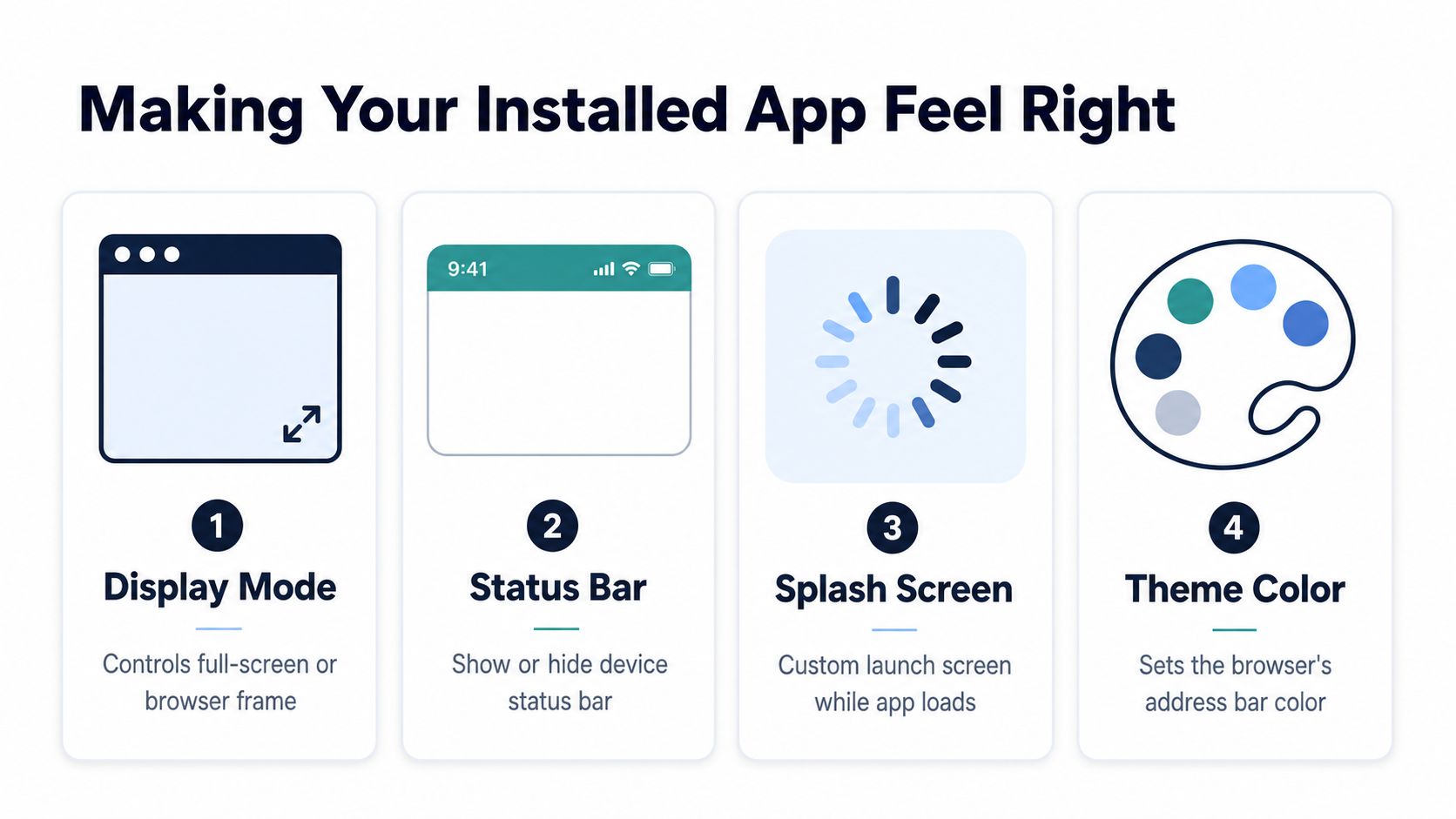
Installation is only half the job. The settings you put in the manifest decide whether the app opens with a browser frame, a clean standalone window, or a fuller-screen view. The most useful modes are standalone, fullscreen, and minimal-ui, and each one changes how much of the browser the user sees.
<a id="display-mode-choices"></a>
Display mode choices
Standalone is the familiar app-like option. It removes most browser chrome and makes the site feel like a dedicated application. Fullscreen goes further and fills the screen, which is useful when the app is built for maps, media, or other focused tasks. Minimal-ui sits between those two, giving you a lighter browser frame without the full tab bar.
For a map-first product like AIR.POG, fullscreen behavior matters because the user wants the map, the route, and the nearby offers, not extra browser controls crowding the view. That's especially helpful when the experience is meant to work on the move, where every extra tap adds friction.
<a id="prompt-timing-and-user-comfort"></a>
Prompt timing and user comfort
The other piece is how you ask people to install in the first place. The strongest implementations wait for repeat visits or compatible browsers before surfacing the prompt, because browsers use their own heuristic thresholds and the exact timing rules aren't exposed to site owners (Scribd add2home guide). That's why immediate page-load prompts often feel intrusive. A user who has just landed on a site usually isn't ready to commit.
Prompting after a real sign of interest feels natural. Prompting on the first screen often feels like pressure.
A good install flow recognizes prior install state and avoids repeating itself. It also respects the difference between a shortcut and a true app install, because that difference is what users feel once they tap the icon. If the app is meant to be used while moving, the install prompt and the launch mode should support that use case, not fight it.
<a id="troubleshooting-and-final-checklist"></a>
Troubleshooting and Final Checklist
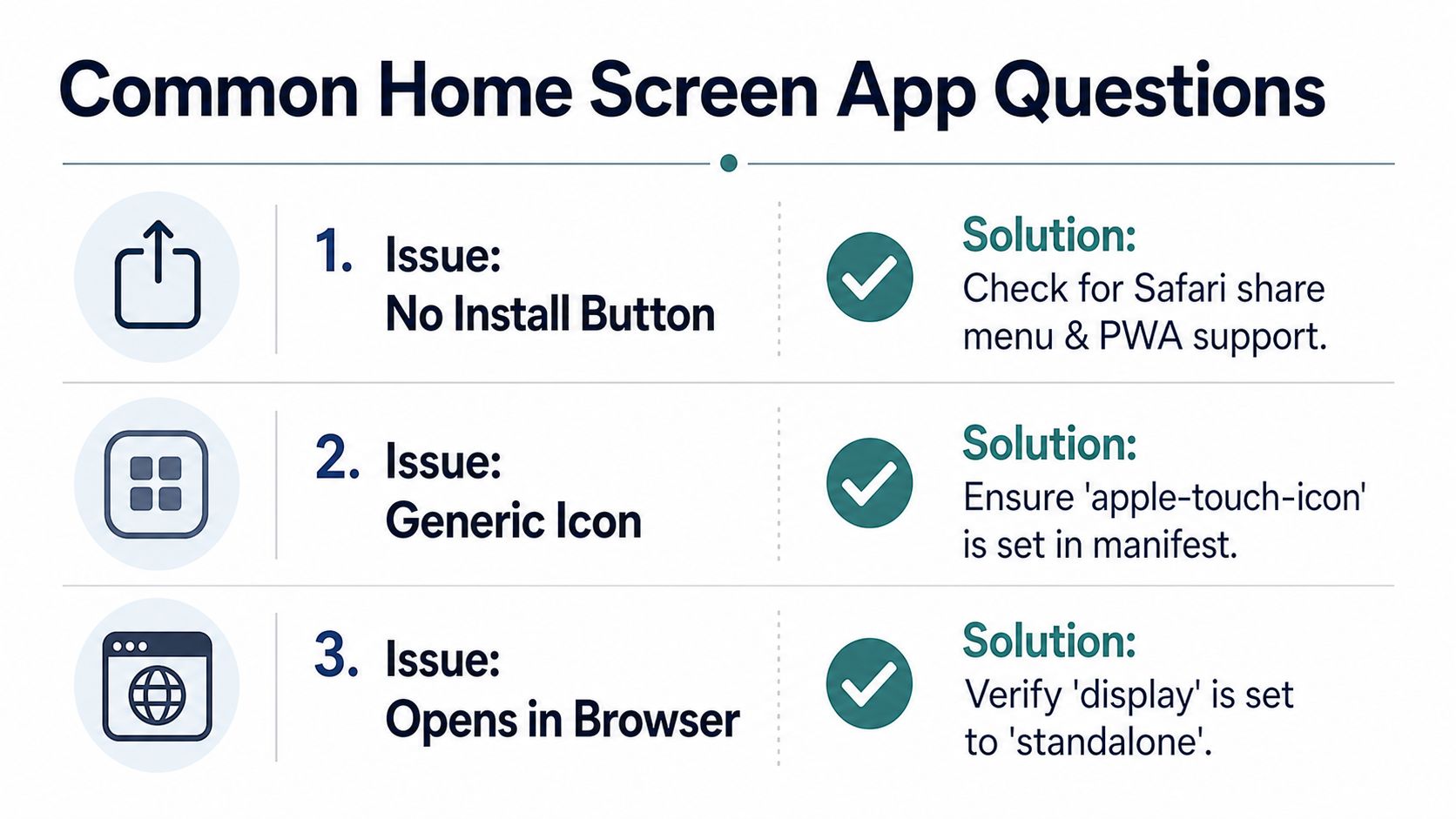
When people run into trouble, the complaints are usually the same. There's no install button. The icon looks generic. The saved tile opens in the browser instead of a standalone window. Each problem has a different cause, and each one points back to the browser's install rules or the site's manifest setup.
<a id="quick-fixes-for-the-most-common-problems"></a>
Quick fixes for the most common problems
- No install button: Open the page in the right browser, then check whether it meets PWA requirements, especially HTTPS, manifest, and service worker support.
- Generic icon: Make sure the site provides proper icon assets, including the sizes browsers expect, so the home screen tile doesn't fall back to a plain-looking square.
- Opens in browser: Check whether the site is a PWA and whether the display mode is set to standalone or a fuller app mode instead of just behaving like a saved page.
Here's the plain-English version. If the browser can't trust the site as installable, it won't offer the stronger app behavior. If the icon assets are weak, the tile looks weak. If the display mode is wrong, the result feels like a bookmark, not an app.
<a id="final-install-checklist"></a>
Final install checklist
- iPhone and iPad: Use Safari, tap Share, then choose Add to Home Screen.
- Android: Try Chrome's install prompt first, then the browser menu if needed.
- Windows and macOS: Look for the install icon in Chrome or the apps menu in Edge.
- Site owners: Confirm HTTPS, a manifest, a service worker, and proper icons.
- User experience: Prefer install prompts that appear after repeat use, not on the first page load.
If you want a map-first web app that's built for quick, on-the-go use, AIR.POG is designed around that installable PWA model and its home-screen shortcut flow. Visit AIR.POG to try the install experience yourself and see how a live, location-aware web app behaves once it's on your home screen.
Spread the word — every share brings more POG'rs to the map. 🎯
Got a story or tip?