 For Everyone
Add to Home Screen Android: A Practical PWA Install Guide
by AIR.POG Team
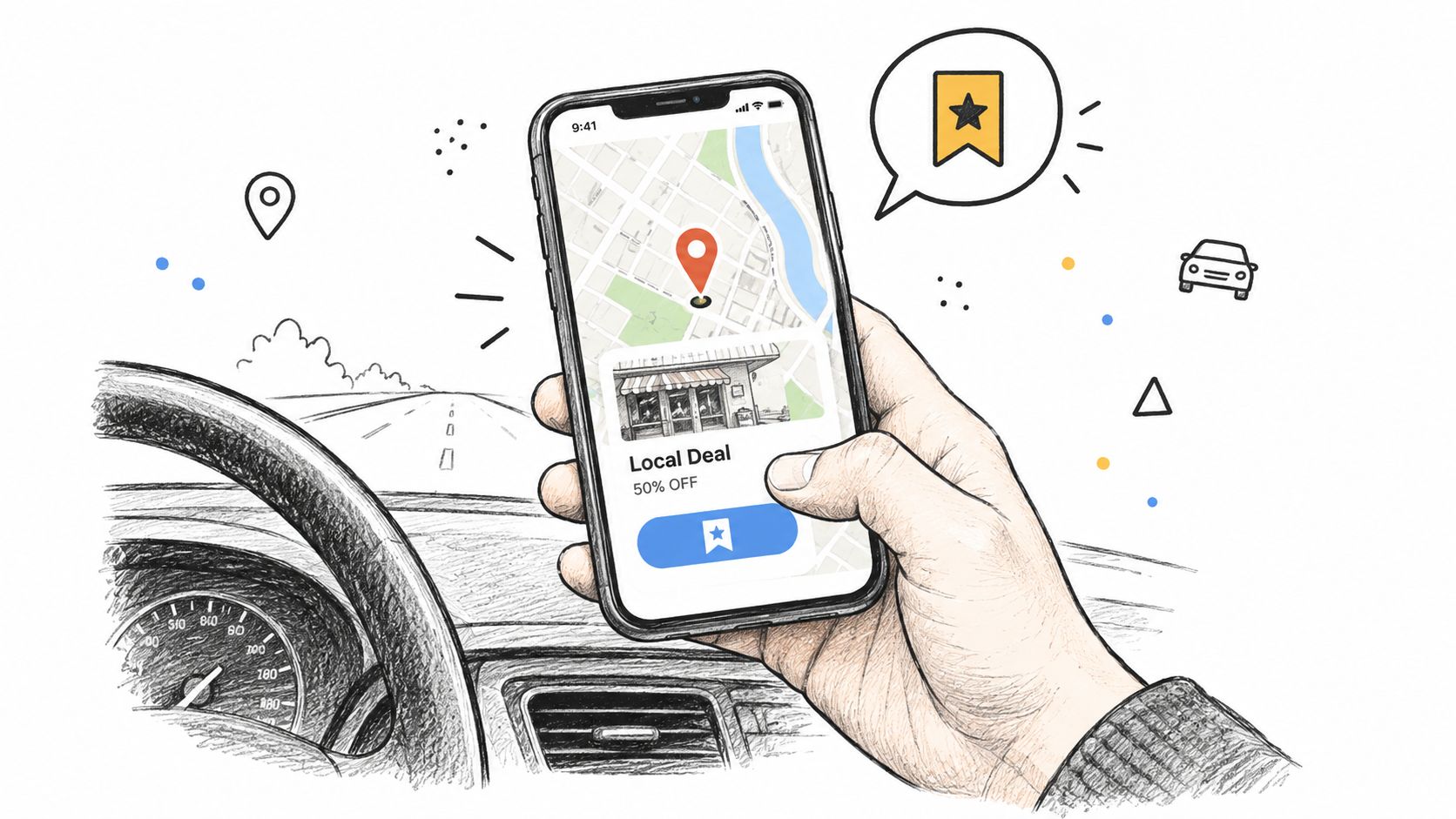
You've just spotted a useful deal on a map while driving, but you're not ready to stop and investigate. A minute later, you're trying to find the same page again, digging through browser tabs, or searching the site from scratch. Android's add to home screen feature can turn that recovery step into a single tap, but the result depends on whether you create a basic shortcut or install a properly configured progressive web app.
The difference matters. A bookmark may open inside a normal browser tab, while an installable PWA can launch in a standalone, app-like window. The menu label may also vary. Depending on the browser, site readiness, and Android version, you might see Add to Home screen, Install app, or Install and create shortcut.
Table of Contents
- What Add to Home Screen Actually Does on Android
- The Technical Requirements Behind an Android Install Prompt
- Step-by-Step Install in Chrome and Samsung Internet
- How Other Android Browsers Handle Install Prompts
- Building a Custom Install Button With Beforeinstallprompt
- Driving-Friendly Benefits of a Standalone PWA Launch
- Why the Install Prompt Never Appears and How to Fix It
<a id="what-add-to-home-screen-actually-does-on-android"></a>
What Add to Home Screen Actually Does on Android
Suppose you're on a route, notice a nearby promotion, and want to return to it after parking. A regular browser bookmark saves the URL, but it usually behaves like a bookmark. Tap it later and Android opens the browser, restores the address bar, and treats the page as another web destination.
A properly installed PWA can behave differently. Its manifest tells Android how the app should launch, while its service worker supports the app's web experience. With a suitable display value, such as standalone or fullscreen, the home-screen entry can open without the normal browser interface. Chromium guidance on adding PWAs to the home screen explains how manifest fields control the app's appearance and launch behavior.
<a id="shortcut-versus-installed-web-app"></a>
Shortcut versus installed web app
The visible action may look similar, but Android can create different kinds of entries:
- Browser shortcut: Opens the saved page in a browser context, often with browser branding and the URL bar.
- Installed PWA: Uses the manifest's name, icon, start URL, and display behavior to provide a more app-like launch.
- Launcher entry with WebAPK behavior: On supported device and browser combinations, Android can add an app-style entry that feels closer to a native installation.
That's why installation is more than a cosmetic home-screen icon. It gives a frequently used web tool a direct distribution path, without requiring a traditional app-store download. The progressive web app overview covers the broader model, including how a web app can combine browser delivery with app-like behavior.
For a location-aware service such as AIR.POG, this distinction is practical. A map-first experience is useful when it can open quickly, show nearby options, and reduce the number of taps between discovery and navigation. If you only revisit a page once, a bookmark may be enough. If you check nearby deals repeatedly, an installed entry earns its place on the home screen.
Practical rule: Install a PWA when you want repeated, direct access. Save a bookmark when you only need to preserve a page.
<a id="the-technical-requirements-behind-an-android-install-prompt"></a>
The Technical Requirements Behind an Android Install Prompt
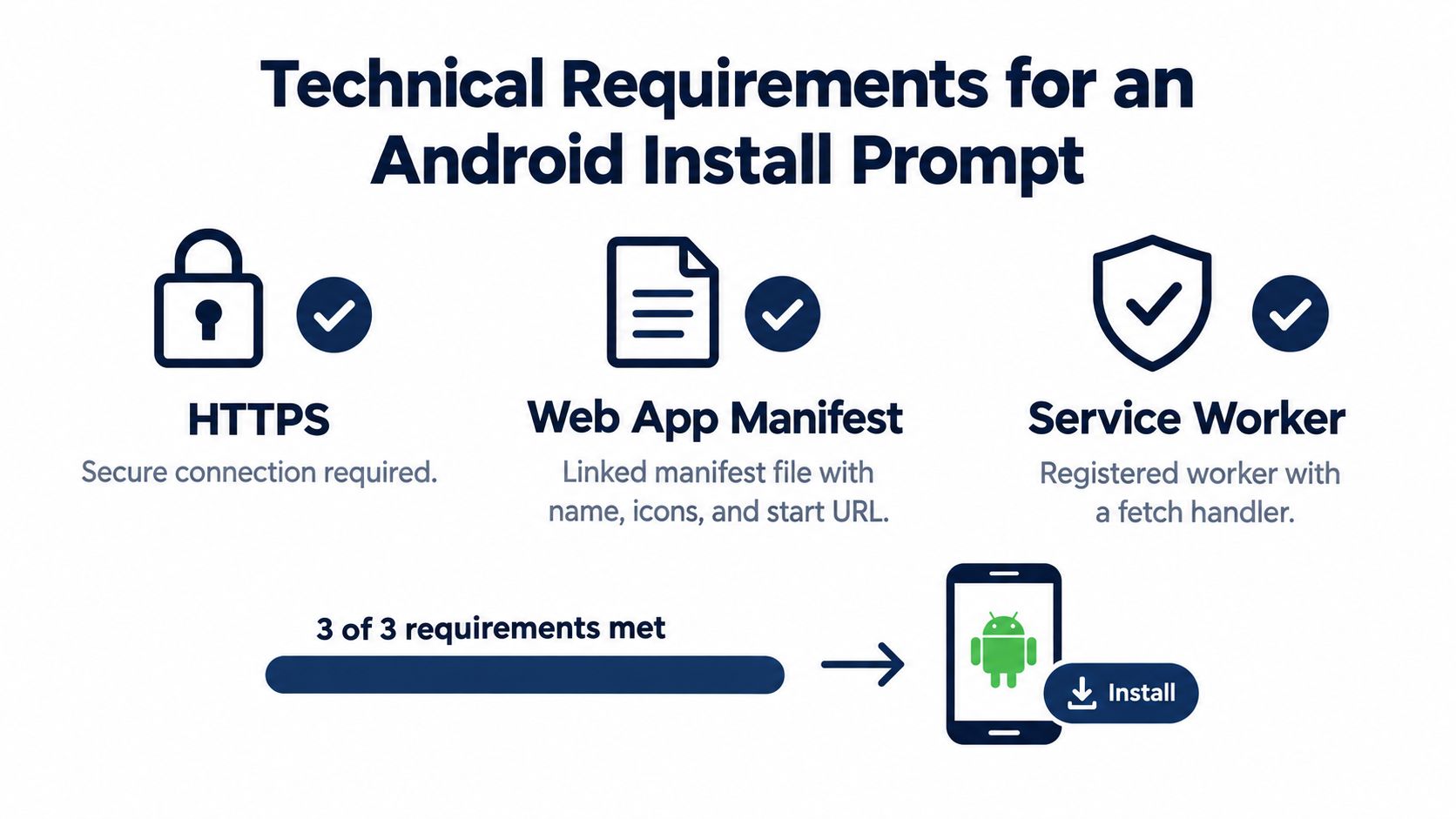
Android doesn't show an install prompt just because a site looks like an app. The browser first checks whether the site has the technical foundation needed for installation. For the standard Android path, that foundation includes HTTPS, a linked web app manifest, and a registered service worker. MDN's installation guidance describes these requirements and notes that the installed result can vary by browser.
<a id="https-protects-the-installation-path"></a>
HTTPS protects the installation path
HTTPS encrypts the connection between the device and the site. It also gives the browser a secure context in which service workers and other PWA capabilities can operate. If a site still loads over plain HTTP, the install experience may never become available, regardless of how polished the interface looks.
<a id="the-manifest-describes-the-app"></a>
The manifest describes the app
A linked web app manifest is a structured file that identifies the app's name, icons, start URL, and display preference. Android uses those values when it creates the launcher entry and decides how the app should open. A missing manifest, a broken link, invalid JSON, or unusable icon can prevent installation.
Manifest members such as description and screenshots can also provide extra install-prompt context on Android. MDN's guide to making PWAs installable explains how the browser evaluates the manifest and when it can expose installation UI.
<a id="the-service-worker-supplies-app-behavior"></a>
The service worker supplies app behavior
A registered service worker runs separately from the page and can handle network requests, caching, and other PWA behavior. Registration alone isn't enough if the worker fails to activate or doesn't provide the expected fetch handling. Developers should check the browser's application tools, confirm that the worker is active, and test the app in a clean session.
For readers who want the implementation checklist behind these conditions, AIR.POG's installable web app guide provides a focused explanation of the required pieces. The useful diagnostic principle is simple: if one part is missing, the phone isn't necessarily at fault. The browser is withholding an install flow because the site hasn't met its eligibility conditions.
<a id="step-by-step-install-in-chrome-and-samsung-internet"></a>
Step-by-Step Install in Chrome and Samsung Internet
Open the PWA in the browser where you want to install it, not inside an embedded social-media browser. On Chrome for Android, look first at the address bar. If Chrome recognizes an installable site, it may show a small install control or an install-related mini-infobar. Tap it and review the app name before confirming.
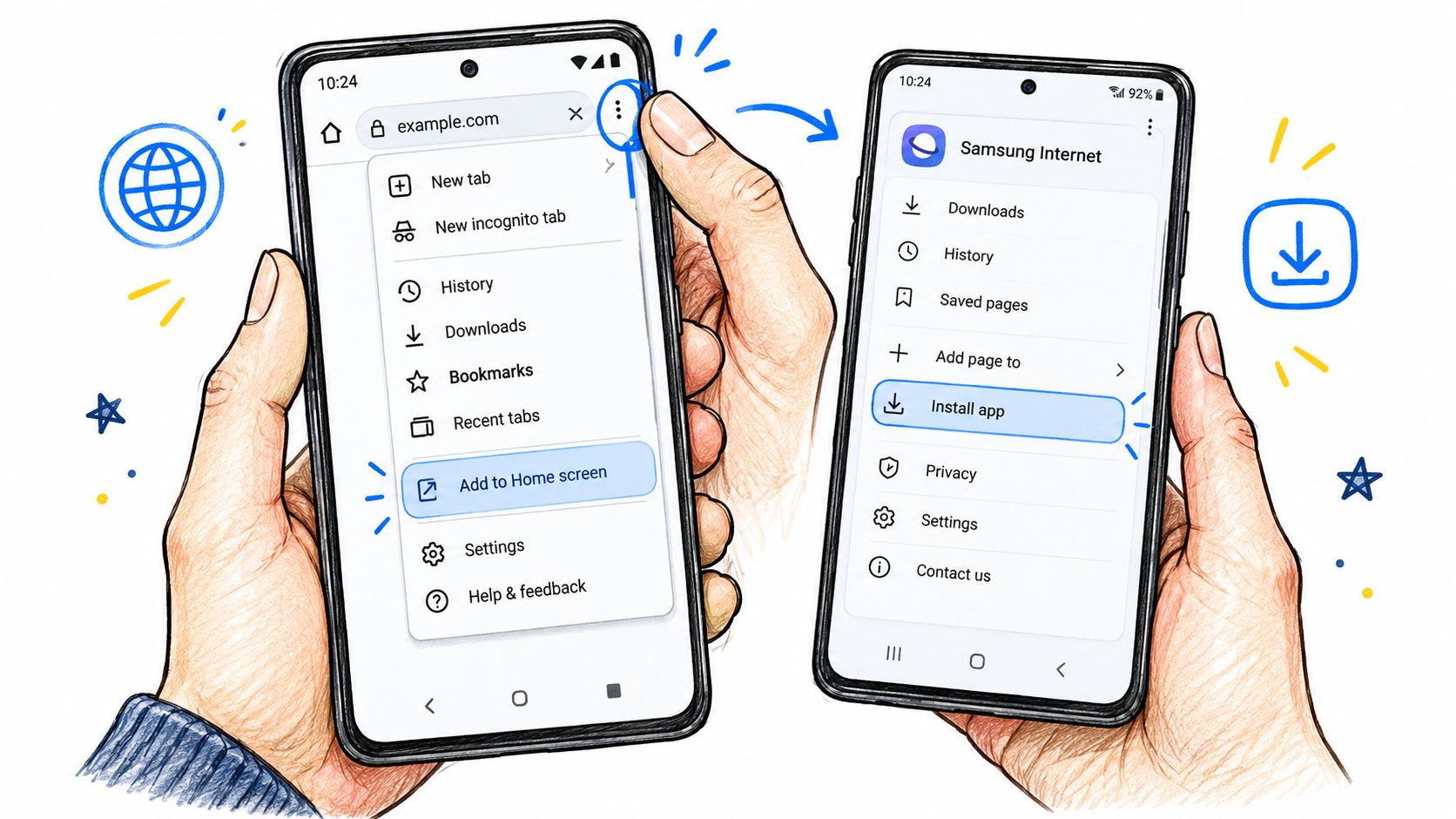
If no address-bar control appears, use Chrome's menu:
- Open the three-dot menu in the upper-right corner.
- Look for Install app or Add to Home screen.
- Tap the option, then confirm the displayed name and icon.
- Return to the Android launcher and find the new entry.
Chrome's wording has shifted from Add to home screen toward the simpler Install label. Google's taxonomy research found no meaningful difference in user understanding in the cited 2019 study, which helps explain why older guides and current devices use different terms. Chrome's PWA installation feature guidance documents this label change and the related install signals.
Samsung Internet follows a comparable pattern, although the wording and placement can differ by release. Open the browser menu, choose Add page to, then select Home screen when that option is available. On sites recognized as installable PWAs, Samsung Internet may instead expose Install app directly. If the browser offers only a shortcut, that usually indicates either a regular page context or a site that hasn't satisfied the browser's installability checks.
Use the confirmation behavior as your test, not the icon alone. Launch the new entry from the Android home screen. A genuine standalone installation should open without the normal URL bar when the manifest's display setting supports that mode.
For a visual walkthrough of the Chrome path, use the embedded demonstration below.
<iframe width="100%" style="aspect-ratio: 16 / 9;" src="https://www.youtube.com/embed/UsG3NwsH5IA" frameborder="0" allow="autoplay; encrypted-media" allowfullscreen></iframe>If a browser hides the action in the main menu, check its share sheet or the expanded menu items. Some Android builds place Install and create shortcut behind a secondary action rather than presenting one universal button. This Android installation walkthrough is useful when the wording on your device doesn't match the label shown in older instructions.
<a id="how-other-android-browsers-handle-install-prompts"></a>
How Other Android Browsers Handle Install Prompts
Chrome is the most familiar route, but it isn't the only one. Android installation behavior depends on the browser, device services, site eligibility, and whether the browser creates a full app entry or only a shortcut. MDN's browser installation reference specifically warns that the installed result can differ across browsers.
| Browser | Where the option lives | Launcher entry type | |---|---|---| | Chrome on GMS devices | Address-bar control or three-dot menu | Often a WebAPK-style app entry when the site qualifies | | Samsung Internet | Browser menu, commonly through home-screen or install actions | Can create a more app-like launcher entry on supported Samsung devices | | Firefox | Browser menu or page actions, with more limited install exposure | Often a browser shortcut or browser-badged entry | | Edge on Android | Browser menu and site actions | May provide an install option or shortcut depending on eligibility | | Brave | Browser menu, where the site's installability is recognized | Behavior can resemble a shortcut when full PWA installation isn't available |
<a id="why-browser-choice-changes-the-result"></a>
Why browser choice changes the result
Chrome on Android and Samsung Internet can create a real WebAPK entry on compatible devices. That means the launcher can treat the installed web app more like an application, with its own icon and app-style launch. Other browsers may create a shortcut that still opens through the browser, even though the user reached it through an “add” action.
Firefox tends to take a more conservative approach to installation prompts. Edge and Brave can expose installation controls, but their exact placement and resulting launcher behavior should be tested rather than assumed. A PWA that installs cleanly in Chrome can present a different path elsewhere.
The wider ecosystem is substantial. The 2025 Web Almanac PWA report recorded total PWA technology usage rising from 5.4 million desktop and 7.9 million mobile uses in 2022 to 12.5 million desktop and 15.5 million mobile uses in 2025. The same source frames that growth as a historical marker for installable web apps, not a promise that every browser creates the same launcher experience.
Test at least Chrome and Samsung Internet when the audience uses both. Also test the actual Android devices that matter to your users, because “installed” can mean a native-feeling launcher app on one combination and a browser shortcut on another.
<a id="building-a-custom-install-button-with-beforeinstallprompt"></a>
Building a Custom Install Button With Beforeinstallprompt
A site doesn't have to wait for the browser's menu to guide users through installation. On supported browsers, the beforeinstallprompt event gives the web app a chance to show its own Install button after the browser has determined that the site is installable. web.dev's installation prompt guide describes the standard sequence.
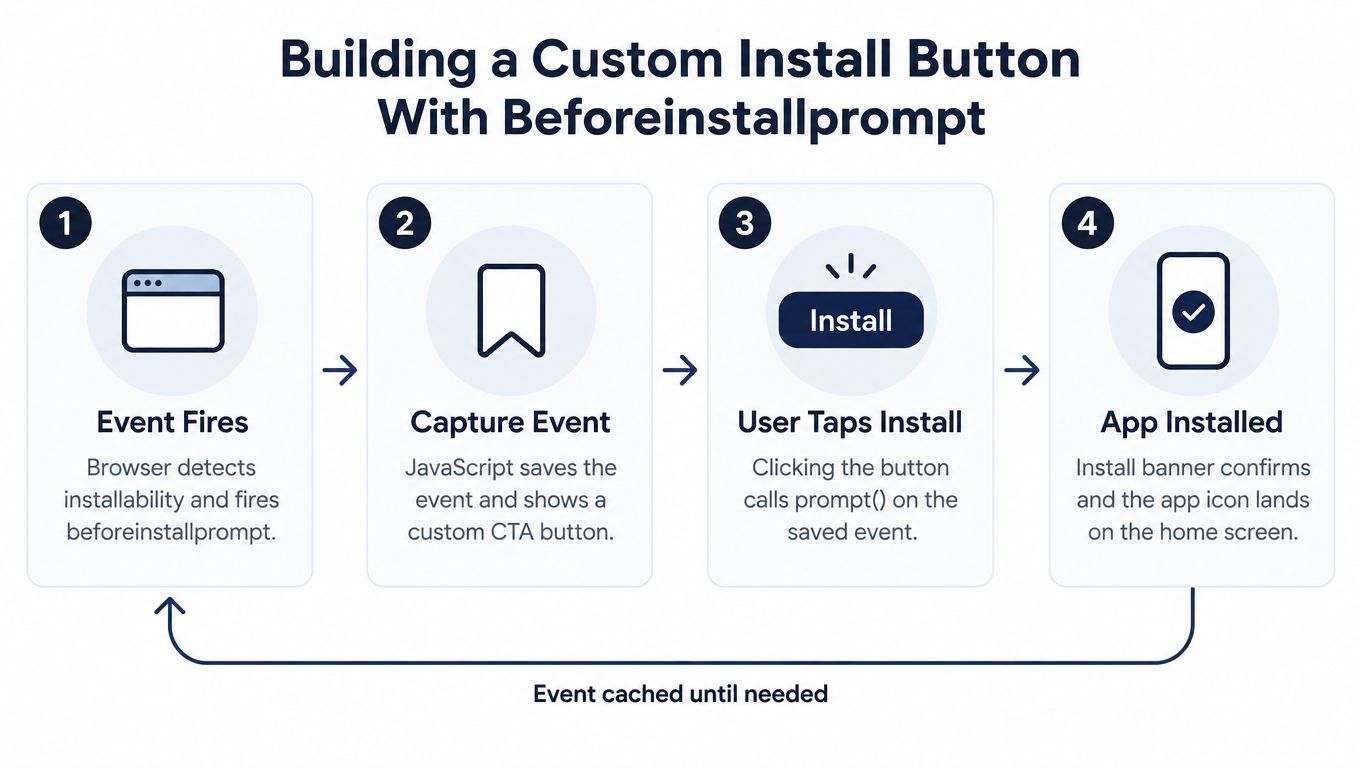
The browser fires the event on Window. The application captures it instead of immediately prompting, then waits for a meaningful user action. That timing matters because an install request shown before the user understands the product feels like an interruption. A visible button after someone has used the map or opened a deal gives the prompt useful context.
A simplified implementation looks like this:
let deferredInstallPrompt;

window.addEventListener("beforeinstallprompt", (event) => {
  event.preventDefault();
  deferredInstallPrompt = event;
  installButton.hidden = false;
});

installButton.addEventListener("click", async () => {
  if (!deferredInstallPrompt) return;

  deferredInstallPrompt.prompt();
  const result = await deferredInstallPrompt.userChoice;

  if (result.outcome === "accepted") {
    installButton.hidden = true;
  }

  deferredInstallPrompt = null;
});

window.addEventListener("appinstalled", () => {
  installButton.hidden = true;
});
<a id="verification-matters-more-than-the-button"></a>
Verification matters more than the button
The button only requests installation. It doesn't prove that the user accepted it or that the launcher entry behaves as intended. Use userChoice to record the immediate decision, listen for appinstalled to detect completion, and check standalone mode on later visits:
const launchedStandalone =
  window.matchMedia("(display-mode: standalone)").matches ||
  window.navigator.standalone === true;
The exact event flow is covered in Chrome's custom install feature documentation, while MDN's installable PWA guidance explains why the browser must establish installability before exposing the event. In production, hide the custom CTA when the app is already running standalone, and provide a browser-menu explanation when beforeinstallprompt never fires.
<a id="driving-friendly-benefits-of-a-standalone-pwa-launch"></a>
Driving-Friendly Benefits of a Standalone PWA Launch
A repeated route creates a simple test for whether installation is useful. You're leaving work, pulling into a parking lot, and want to see which nearby places have an active deal. Opening a standalone PWA from the launcher removes the browser tab hunt and gives the map a dedicated surface.
The manifest's display value controls that launch mode. With standalone, the app can open in an app-like window without the normal URL bar. With fullscreen, it can use an even more immersive presentation where the product supports it. The trade-off is that users lose some browser controls, so the interface needs clear navigation, sensible back behavior, and reliable links for leaving the app.
<a id="fewer-decisions-at-the-point-of-use"></a>
Fewer decisions at the point of use
AIR.POG's map-first experience is designed around location-based discovery. A user can see nearby deals on a map, adjust the scanning radius, open an offer, and use tap-to-route to continue toward a venue. POG REELS adds a short-form view for live local sales, while POG'ODEX provides another way to browse entries when the map isn't the right starting point.
That flow suits short decision windows, but it still shouldn't be used while actively driving. Set the destination before moving, or ask a passenger to interact with the screen. Larger touch targets and a full-screen layout reduce interface clutter, but they don't remove the need for safe phone use.
If you return to the same location-based tool, install it once. The launcher icon is useful because it changes the starting point from “find the site” to “open the experience.”
A bookmark can preserve access, but a standalone launch makes the product feel more deliberate. It also avoids the visual noise of a browser tab, which is particularly helpful for a map that users open for a quick glance, route decision, or local search.
<a id="why-the-install-prompt-never-appears-and-how-to-fix-it"></a>
Why the Install Prompt Never Appears and How to Fix It
The missing prompt usually isn't random. Android browsers make an eligibility decision, and the menu can remain hidden when the site fails a requirement or when the browser chooses a different installation path.
<a id="start-with-the-site-not-the-phone"></a>
Start with the site, not the phone
Check these causes in order:
- The page uses HTTP: A non-secure connection blocks the secure PWA feature set. Open the HTTPS version and make sure every important resource loads securely.
- The manifest isn't linked or valid: Confirm that the page references a valid manifest and that it includes usable identity, icon, start URL, and display information. MDN's manifest and installability guidance explains the role of these fields.
- The icons fail validation: An icon can exist in the manifest and still be unusable because of its path, format, dimensions, or response. Test the actual icon URLs from the browser's application tools.
- The service worker isn't active: A registration error, scope problem, or failed activation can stop the browser from treating the site as installable. Inspect the worker status instead of assuming that the registration script succeeded.
- The browser doesn't support the same install flow: Support differs across Android browsers and devices. Chrome may offer a WebAPK-style entry, while another browser may provide only a shortcut.
- The user hasn't built enough engagement: Browsers can wait until a user has returned to or interacted with a site before showing an automatic prompt. Keep using the site, then check the browser menu manually.
- The app is already installed: Once the app is running in standalone mode, the install prompt should disappear. Check the launcher and inspect the display mode before showing a second CTA.
The Chrome PWA installation guidance also highlights why menu labels and prompt timing can vary. You may be looking for Add to Home screen while your browser now says Install app, or you may be on a regular page where the available action is Install and create shortcut.
Quick diagnosis: HTTPS, manifest, icons, service worker, browser support, then repeat visits. Check those six points before clearing data or blaming Android.
The browser's menu remains the reliable fallback when beforeinstallprompt isn't available. If the resulting entry opens with a URL bar, you created a shortcut or received a browser-specific installation. If it opens as a standalone app, the manifest and browser combined to deliver the behavior you wanted.
AIR.POG offers a location-aware map of nearby live deals, tap-to-route discovery, POG REELS, POG'ODEX, and a PWA install path for Android home-screen access. Visit AIR.POG in Chrome or another supported Android browser, install it when the option appears, and use the launcher entry for quicker local discovery.
Spread the word — every share brings more POG'rs to the map. 🎯
Got a story or tip?