 For Everyone
How to Add to Home Screen Chrome for PWAs
by AIR.POG Team
You're trying to find a nearby deal while moving through an unfamiliar city. Chrome is open, several tabs compete for attention, and the page you need is buried behind the browser interface. You tap the home-screen icon you created earlier, expecting an app, but Chrome opens another tab instead.
That confusion comes from treating every home-screen icon as the same thing. A browser shortcut is only a saved launcher. A progressive web app, or PWA, can be installed as an app, open in its own window, and use a standalone display mode that removes the normal URL bar. For quick-stop tools such as AIR.POG, that distinction affects how fast you can reach a map, check a nearby offer, or start routing.
Table of Contents
- Why Chrome PWA Installation Matters for On-the-Go Access
- Step-by-Step Guide to Installing Web Apps on Chrome
- Understanding Manifest Requirements and Install Prompts
- Troubleshooting Missing Menus and Shortcut Failures
- Maximizing the App Experience for Commuters and Travelers
<a id="why-chrome-pwa-installation-matters-for-on-the-go-access"></a>
Why Chrome PWA Installation Matters for On-the-Go Access
A basic shortcut is useful, but it doesn't change the underlying browsing experience. It launches a URL, usually inside Chrome, with the browser's tabs, address bar, and navigation controls still part of the context. That's fine for an occasional reference page. It becomes awkward when you're checking a location-based service during a commute, planning a stop, or moving through a new neighborhood.
A properly installed PWA behaves differently. Its manifest can request standalone display mode, which opens the site in its own window and removes standard browser controls such as the URL bar, while the browser may retain limited interface elements such as the status bar. MDN's documentation on the display member describes the setting that creates this app-like presentation.
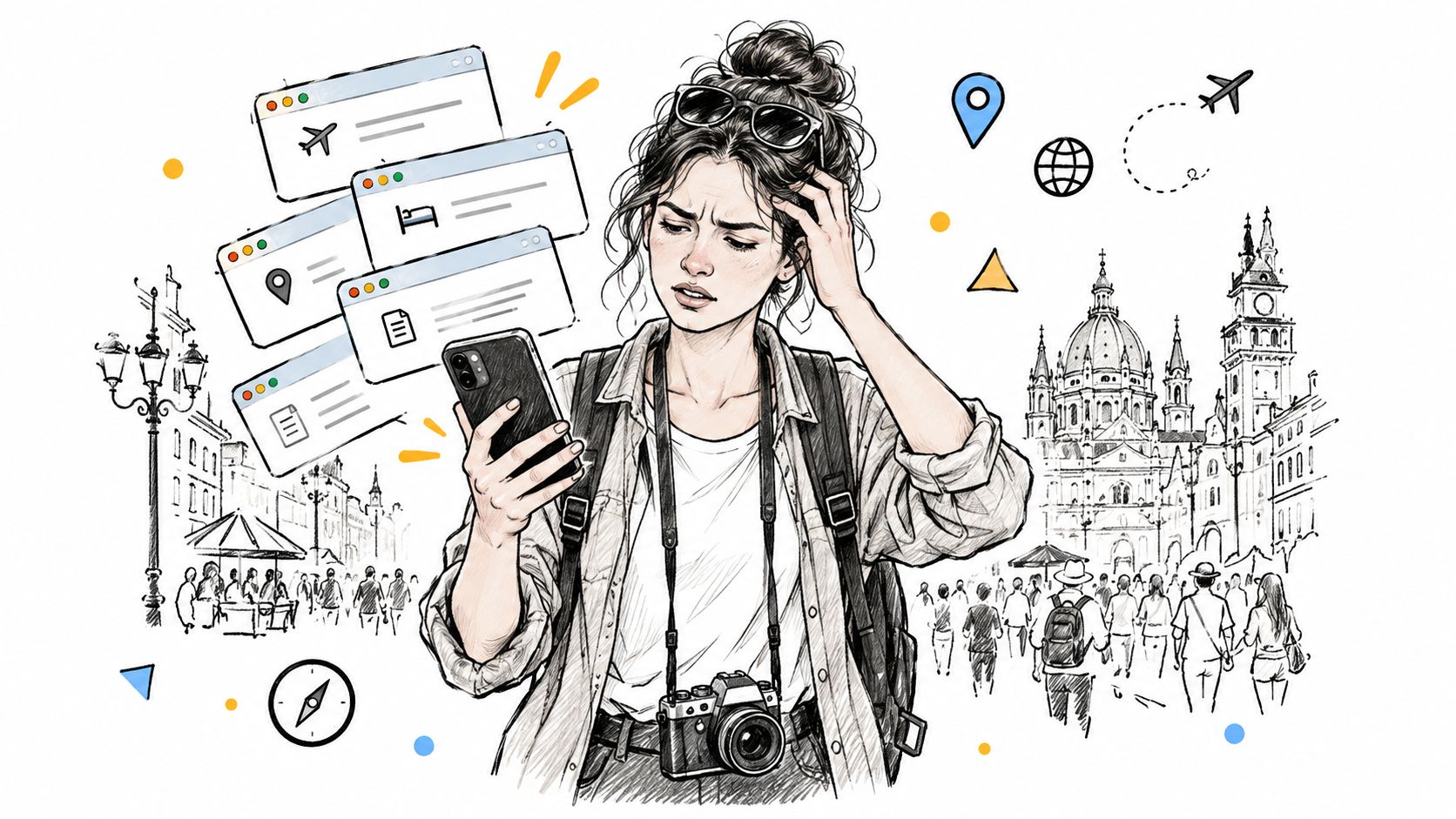
Consider two taps on the same phone. The first launches a bookmarked web page, leaving you to orient yourself inside Chrome. The second launches an installed PWA from the home screen or app drawer, opening a dedicated app window with its own icon and launch behavior. The second route feels closer to a native app because Chrome has recognized the site as installable rather than treating it as an ordinary page.
That doesn't mean every site added to the home screen becomes a PWA. MDN distinguishes between a bookmark-style launcher and a genuine installed web app, and Chrome's wording can obscure the difference. The menu may say Add to Home screen, Install app, or Install and create shortcut, depending on the site, device, and current browser behavior.
Practical rule: If you want full-screen behavior, don't stop at seeing an icon appear. Confirm that Chrome offered an installation flow and that the site opens as a separate app.
Chrome's installation model has also matured. Its Android documentation still shows the path More > Add to Home screen > Install app, while desktop Chrome can show an install icon in the address bar when a site qualifies. Chrome's own label research found that “Add to home screen” performed slightly better on mobile in a 2016 study, but a later 2019 taxonomy study found no meaningful difference, after which Chrome moved toward the unified Install label on Android. The installation guidance on MDN records this broader shift from shortcut language toward a structured PWA installation flow.
<a id="step-by-step-guide-to-installing-web-apps-on-chrome"></a>
Step-by-Step Guide to Installing Web Apps on Chrome
The correct path depends on whether you're holding an Android phone or using Chrome on a computer. Start by opening the web app's main page in Chrome, not a cached tab or an unrelated deep link. If the site supports installation, Chrome may display its own prompt, or the relevant command will appear in the browser menu.
<a id="android-installation"></a>
Android installation
- Open the site in Chrome. Wait for the page to finish loading, then look for an in-page install message or button.
- Open the browser menu. Tap the three-dot icon in the upper-right corner.
- Choose the available install command. A qualifying PWA may show Install app. Some sites or browser states still show Add to Home screen. If Chrome presents an Install confirmation, accept it.
- Confirm the icon. Chrome should place the app on the home screen, and an installed PWA may also appear in the app drawer.
- Launch it from the icon. Check whether it opens in a separate app-style window instead of another standard Chrome tab.
If Chrome only offers a shortcut flow, you can still add the page to the home screen, but don't assume that shortcut provides standalone behavior. For a more detailed walkthrough of the Android menu and the differences between a shortcut and an installable app, use AIR.POG's Chrome installation guide.
<a id="desktop-installation"></a>
Desktop installation
On a desktop computer, open the site in Chrome and inspect the right side of the address bar. When the site qualifies, Chrome displays an Install icon. Select it, review the confirmation dialog, and approve the installation. The PWA then becomes available through the desktop operating system's app interface and can open in its own window.
Desktop users shouldn't look for the Android three-dot path first. The address-bar icon is the clearest signal that Chrome has identified the site as installable.
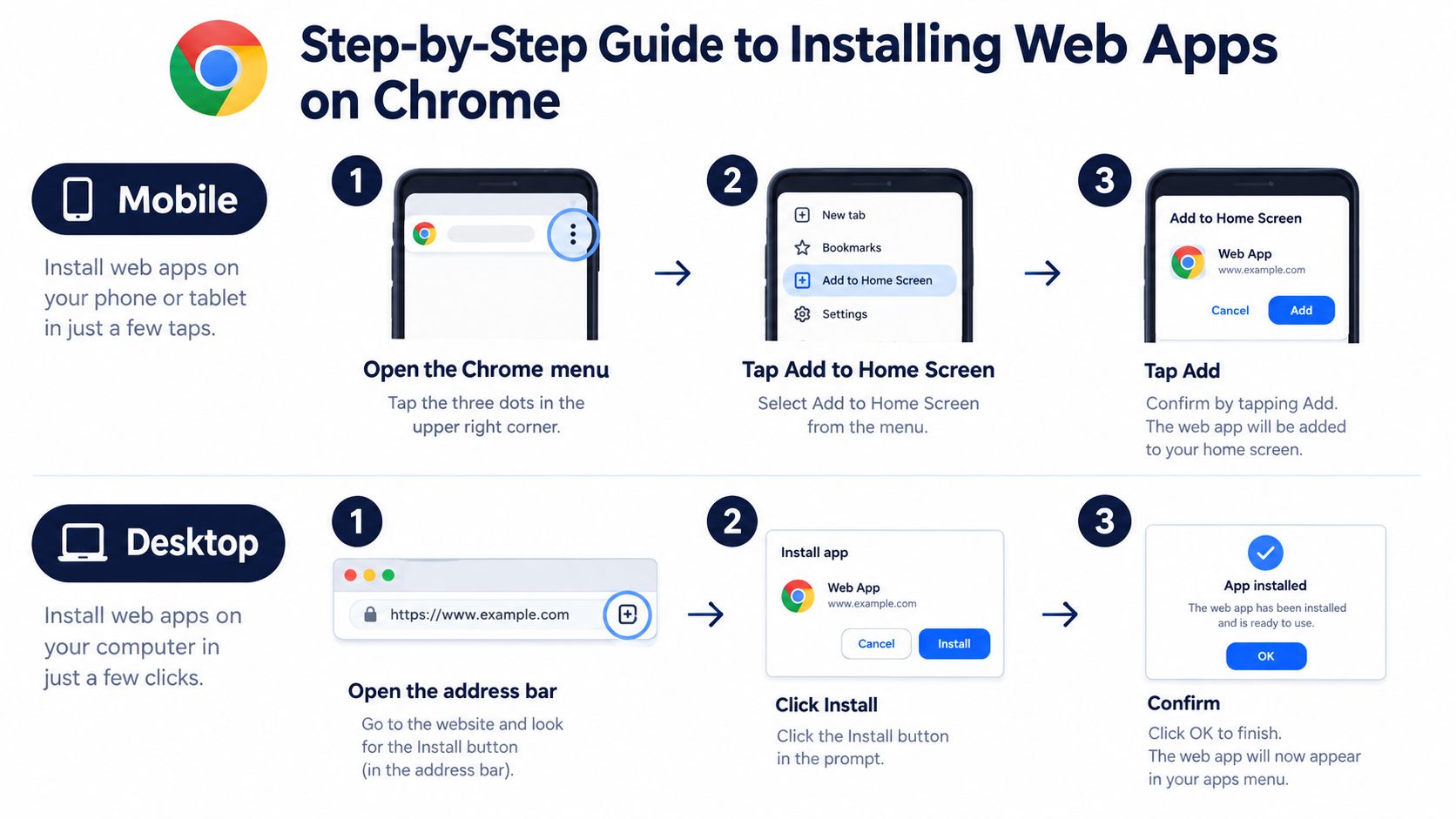
The walkthrough below shows the same distinction visually, with separate mobile and desktop paths.
<iframe width="100%" style="aspect-ratio: 16 / 9;" src="https://www.youtube.com/embed/iJteraObjgs" frameborder="0" allow="autoplay; encrypted-media" allowfullscreen></iframe>For developers, the visible install button shouldn't appear before the browser has established installability. Chrome can fire beforeinstallprompt once the conditions are met, allowing the interface to save that event and call prompt() after the user taps a deliberate in-app control. That timing is more reliable than interrupting someone immediately on page load.
<a id="understanding-manifest-requirements-and-install-prompts"></a>
Understanding Manifest Requirements and Install Prompts
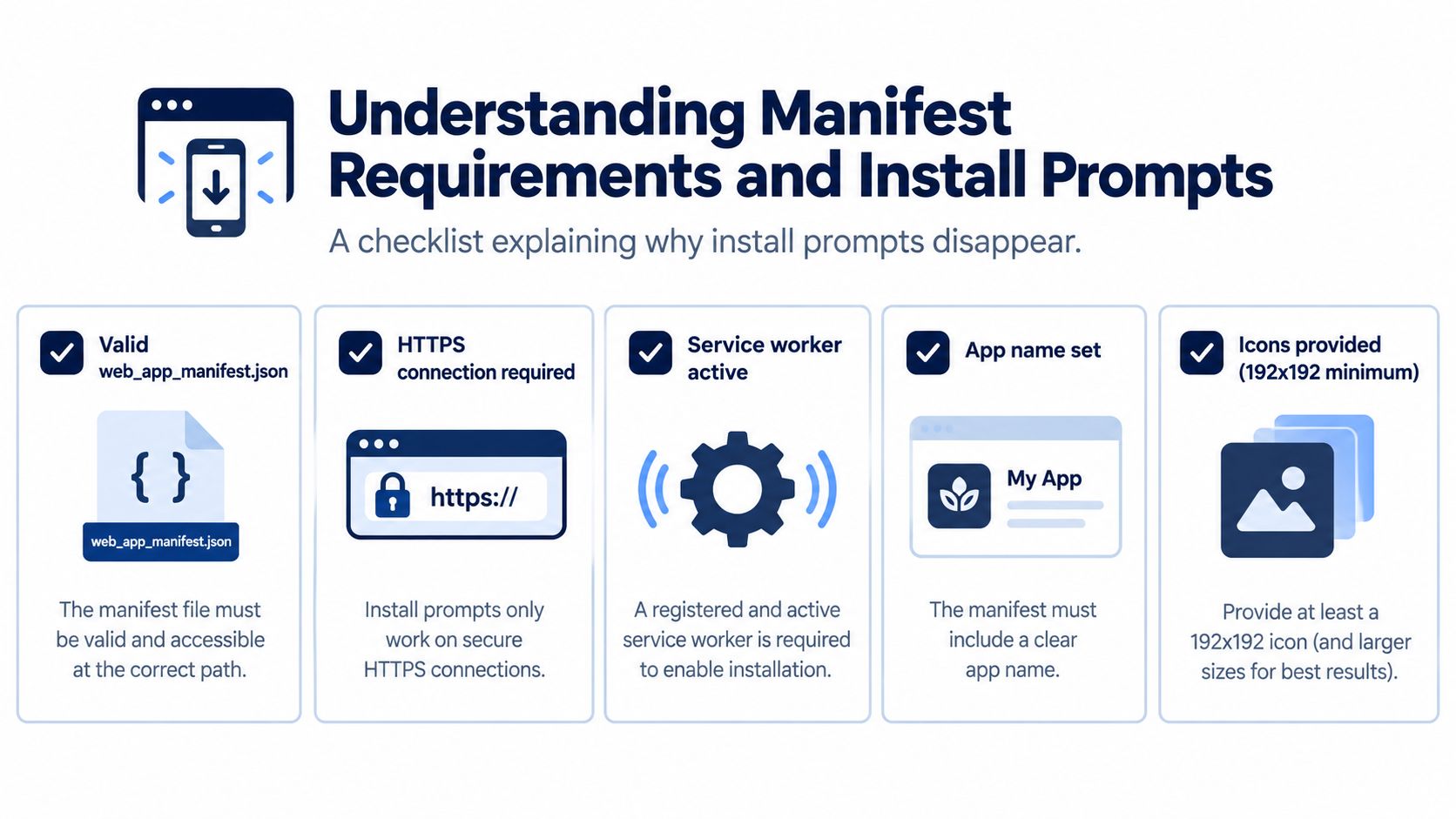
Chrome changes its installation options because it first checks whether a site behaves like an installable web app. The web app manifest supplies the app's name, icons, launch URL, and preferred display mode. Those fields help Chrome treat the site as an application rather than a page saved for later. For a complete checklist of manifest fields and prompt handling, see AIR.POG's guide to creating an installable web app.
Chrome also considers how the app is delivered and how it behaves. Older guidance tied installability to HTTPS, a registered service worker, and repeat visits. Current Chromium behavior has relaxed that former combination for installation prompts, with the manifest serving as the main requirement for Chrome and Edge installation options. The change reduces some setup work, but it does not make every page installable or ensure that a prompt appears.
<a id="what-chrome-checks"></a>
What Chrome checks
A practical review should cover these areas:
- Manifest identity: Provide a valid web app manifest with an application name and launch details.
- Branding assets: Traditional Chrome install criteria included
short_name,name, and icons sized 192px and 512px. Chrome's native install documentation explains those earlier requirements. - Secure delivery: Serve the experience through HTTPS. Chrome's Android guidance has included HTTPS in its installability model.
- App behavior: A registered service worker supports the PWA model and remains useful for application behavior, even though prompt criteria have changed.
- Engagement: Chrome's Android guidance says the site must be visited twice with at least 5 minutes between visits before certain install prompts appear. Chrome's PWA introduction describes this engagement logic.
A first visit may therefore show no install control. Chrome weighs installability and engagement before presenting a prompt, so developers should treat installation as a measured conversion path rather than a guaranteed browser event.
For site owners, the practical pattern is to listen for beforeinstallprompt, call preventDefault(), store the event, and display a custom install button when installation has clear value. The control can appear after someone has explored AIR.POG or reached a workflow they may need on the go. Chrome may suppress its older mini-infobar, so a product-controlled button gives the team more control over timing.
For users, a missing prompt usually reflects the site configuration, browser state, or visit history. It does not necessarily indicate a problem with the phone. A shortcut can still save a page, while a valid manifest and suitable display settings are what support the full-screen, app-like experience users expect from a PWA.
<a id="troubleshooting-missing-menus-and-shortcut-failures"></a>
Troubleshooting Missing Menus and Shortcut Failures
Chrome's labels have changed enough to create avoidable confusion. Add to Home screen may mean a simple launcher, while Install app signals a PWA installation flow. Install and create shortcut can combine both ideas in one label, which makes the menu look inconsistent even when Chrome is responding normally.
Start with the page itself. Reload it in Chrome, confirm the connection is secure, and check whether the site displays an in-app install control. Then open the three-dot menu and look for the exact wording available on that device. Don't keep searching for Add to Home screen if Chrome has replaced it with Install app.
<a id="diagnose-the-result-not-just-the-icon"></a>
Diagnose the result, not just the icon
A home-screen icon proves only that Chrome or the launcher created an entry. Use these checks to determine what happened:
- Launch from the icon. If the page opens inside a normal Chrome tab with the URL bar visible, you likely created a shortcut rather than a standalone installation.
- Check the app drawer. A genuine PWA installation may appear alongside other apps, while a basic bookmark-style launcher may remain only on the home screen.
- Open Android Settings. Go to Settings > Apps and search for the installed web app. Google guidance notes that Chrome can fall back to shortcut behavior if WebAPK installation fails, so this check matters.
- Review the site state. If the app is missing from Settings, revisit the site and use its install flow rather than repeating a generic shortcut command.
A visible icon is an entry point. The app listing in Android Settings is stronger evidence that Chrome registered a separate application.
A failed install can also reflect outdated platform services, a device-specific limitation, or a browser state that hasn't refreshed after the site became installable. Close stale tabs, reopen the page, and try the native Install option again. If the menu still shows only a shortcut command, use the shortcut if quick access is enough, but don't expect it to remove browser controls.
Android and iOS also differ. Chrome on Android provides the install paths discussed here, while iPhone and iPad users generally use Safari's Share > Add to Home Screen flow for web apps. The platform distinction is covered in AIR.POG's guide to adding a PWA to the home screen on iOS, and it explains why copying Android instructions to an iPhone produces the wrong menu.
<a id="maximizing-the-app-experience-for-commuters-and-travelers"></a>
Maximizing the App Experience for Commuters and Travelers
Installation matters most when the next action is short and time-sensitive. A commuter may want to check a nearby offer before reaching the next stop. A traveler may need a map-centered view of unfamiliar streets. In both cases, a standalone PWA reduces the visual competition created by tabs and the address bar, but it doesn't remove the need for safe attention management. Never interact with a phone while driving.
The practical advantage comes from reducing repeated setup. A home-screen launch takes you directly to the tool, while a PWA's manifest can define an app-like display mode. A service worker can also support resilient web-app behavior when developers have implemented the relevant offline experience, although installation alone doesn't guarantee that every feature works without a connection.

For a location-aware service such as AIR.POG, the useful sequence is direct: open a nearby-deals map, adjust the scanning area, select a venue, and continue to routing. The PWA format keeps that experience accessible across supported devices without requiring a traditional app-store download, while the standalone presentation makes the launch feel more like a dedicated utility than another browser bookmark.
Before you rely on it away from home: Install the app, launch it from the new icon, verify its display mode, and test location access while you still have a stable connection.
If Chrome offers only a shortcut, you can still use it for fast access. If your goal is a full-screen, app-like experience, wait for the genuine install flow or use the site's own install button after Chrome exposes it. That small distinction prevents a common disappointment: expecting a native-style launch from an icon that only stores a URL.
AIR.POG offers a live, location-aware map for nearby promotions, with venue routing and app-style access through its installable PWA. Install it through Chrome, verify that it opens as a standalone app, and visit AIR.POG when you want local deals available from your home screen.
Spread the word — every share brings more POG'rs to the map. 🎯
Got a story or tip?